Enjoy !!
Showing posts with label Linux. Show all posts
Showing posts with label Linux. Show all posts
Friday, October 23, 2015
Video step by step upgrade SLES 11 SP 2 to SLES 11 SP4
This video show you the process on step by step upgrade from SuSE Linux Enterprise Server 11 SP 2 to SuSE Linux Enterprise Server 11 SP4.
Enjoy !!
Enjoy !!

Thursday, July 21, 2011
How to check connectivity between Linux host and a disk array
Determine hardware and drivers from dmesg output
Following is a brief description of some typical dmesg output required for the connectivity of a linux server to a disk array.Match the following headers with the corresponding highlighted lines from the dmesg output below.
Fusion MPT SCSI Host driver 3.01.16
The LSI 1030 controller implements the LSI Logic Fusion-MPT architecture, a multithreaded I/O algorithim that supports data transfers between host system and SCSI devices with minimal host processor intervention.
Vendor: LSILOGIC Model: 1030 IM IM Rev: 1000
The LSI153C1030 PCI-X to Dual Channel Ultra320 SCSI Multifunction Controller brings Ultra320 SCSI performance to host adapter, workstation and server designs enabling the addition of a high-performance SCSI bus to any PCI or PCI-X system.
QLogic Fibre Channel HBA Driver: 8.01.06-fo
Driver version 8.01.06.fo for the Qlogic QMC2462S HBA
QLogic QMC2462S HBA- IBM eServer BC 4Gb FC Expansion Card SFF
Qlogic SANblade QMC2462S - Dual port 4-Gbps fibre channel (FC) small form factor (SFF) expansion card for IBM bladecenter. 300,000 IOPS delivers high I/O transfer rates for storage applications.
Vendor: IBM Model: 1815 FAStT Rev: 0914
IBM 1815 is the model number for a DS4800 storage array. This dmesg entry indicates that the following SCSI device sdx is attached to the array. FAStT = Fibre Array Storage Technology
dmesg output
From the output below we can see that the scsi disk sda is a local disk and scsi disks sdb, sdc, sdd, sde, sdf are connected to a DS4800 array (Model 1815).Type the following command, dmesg
SCSI subsystem initialized
Fusion MPT base driver 3.01.16
Copyright (c) 1999-2004 LSI Logic Corporation
ACPI: PCI interrupt 0000:02:01.0[A] -> GSI 24 (level, low) -> IRQ 225
mptbase: Initiating ioc0 bringup
ioc0: 53C1030: Capabilities={Initiator}
Fusion MPT SCSI Host driver 3.01.16scsi0 : ioc0: LSI53C1030, FwRev=01032933h, Ports=1, MaxQ=222, IRQ=225 Using cfq io schedulerVendor: LSILOGIC Model: 1030 IM IM Rev: 1000
Type:   Direct-Access                      ANSI SCSI revision: 02
SCSI device sda: 71020544 512-byte hdwr sectors (36363 MB)
SCSI device sda: drive cache: write through
 sda: sda1 sda2 sda3
Attached scsi disk sda at scsi0, channel 0, id 0, lun 0
QLogic Fibre Channel HBA Driver
ACPI: PCI interrupt 0000:06:01.0[A] -> GSI 49 (level, low) -> IRQ 193
qla2400 0000:06:01.0: Found an ISP2422, irq 193, iobase 0xf8818000
qla2400 0000:06:01.0: Configuring PCI space...
qla2400 0000:06:01.0: Configure NVRAM parameters...
qla2400 0000:06:01.0: Verifying loaded RISC code...
qla2400 0000:06:01.0: Allocated (64 KB) for EFT...
qla2400 0000:06:01.0: Allocated (1413 KB) for firmware dump...
qla2400 0000:06:01.0: Waiting for LIP to complete...
qla2400 0000:06:01.0: LOOP UP detected (4 Gbps).
qla2400 0000:06:01.0: Topology - (F_Port), Host Loop address 0x0
qla020: ConfigRequired is set.
scsi1 : qla2xxx
qla2400 0000:06:01.0:
QLogic Fibre Channel HBA Driver: 8.01.06-fo
QLogic QMC2462S - IBM eServer BC 4Gb FC Expansion Card SFF
ISP2422: PCI-X Mode 1 (133 MHz) @ 0000:06:01.0 hdma+, host#=1, fw=4.00.23 [IP]Vendor: IBM Model: 1815 FAStT Rev: 0914
Type:   Direct-Access                      ANSI SCSI revision: 03
qla2400 0000:06:01.0: scsi(1:0:0:0): Enabled tagged queuing, queue depth 32.
SCSI device sdb: 41943040 512-byte hdwr sectors (21475 MB)
SCSI device sdb: drive cache: write back
 sdb: unknown partition table
Attached scsi disk sdb at scsi1, channel 0, id 0, lun 0
  Vendor: IBM       Model: 1815      FAStT   Rev: 0914
  Type:   Direct-Access                      ANSI SCSI revision: 03
qla2400 0000:06:01.0: scsi(1:0:0:1): Enabled tagged queuing, queue depth 32.
SCSI device sdc: 41943040 512-byte hdwr sectors (21475 MB)
SCSI device sdc: drive cache: write back
 sdc: unknown partition table
Attached scsi disk sdc at scsi1, channel 0, id 0, lun 1
  Vendor: IBM       Model: 1815      FAStT   Rev: 0914
  Type:   Direct-Access                      ANSI SCSI revision: 03
qla2400 0000:06:01.0: scsi(1:0:0:2): Enabled tagged queuing, queue depth 32.
SCSI device sdd: 77594624 512-byte hdwr sectors (39728 MB)
SCSI device sdd: drive cache: write back
 sdd: unknown partition table
Attached scsi disk sdd at scsi1, channel 0, id 0, lun 2
  Vendor: IBM       Model: 1815      FAStT   Rev: 0914
  Type:   Direct-Access                      ANSI SCSI revision: 03
qla2400 0000:06:01.0: scsi(1:0:0:3): Enabled tagged queuing, queue depth 32.
SCSI device sde: 209715200 512-byte hdwr sectors (107374 MB)
SCSI device sde: drive cache: write back
 sde: unknown partition table
Attached scsi disk sde at scsi1, channel 0, id 0, lun 3
  Vendor: IBM       Model: 1815      FAStT   Rev: 0914
  Type:   Direct-Access                      ANSI SCSI revision: 03
qla2400 0000:06:01.0: scsi(1:0:0:4): Enabled tagged queuing, queue depth 32.
SCSI device sdf: 445100032 512-byte hdwr sectors (227891 MB)
SCSI device sdf: drive cache: write back
 sdf: unknown partition table
Attached scsi disk sdf at scsi1, channel 0, id 0, lun 4
ACPI: PCI interrupt 0000:06:01.1[B] -> GSI 50 (level, low) -> IRQ 201
qla2400 0000:06:01.1: Found an ISP2422, irq 201, iobase 0xf881a000
qla2400 0000:06:01.1: Configuring PCI space...
qla2400 0000:06:01.1: Configure NVRAM parameters...
qla2400 0000:06:01.1: Verifying loaded RISC code...
qla2400 0000:06:01.1: Allocated (64 KB) for EFT...
qla2400 0000:06:01.1: Allocated (1413 KB) for firmware dump...
qla2400 0000:06:01.1: Waiting for LIP to complete...
qla2400 0000:06:01.1: LOOP UP detected (4 Gbps).
qla2400 0000:06:01.1: Topology - (F_Port), Host Loop address 0x0
qla021: ConfigRequired is set.
scsi2 : qla2xxx
qla2400 0000:06:01.1:
 QLogic Fibre Channel HBA Driver: 8.01.06-fo
  QLogic QMC2462S - IBM eServer BC 4Gb FC Expansion Card SFF
  ISP2422: PCI-X Mode 1 (133 MHz) @ 0000:06:01.1 hdma+, host#=2, fw=4.00.23 [IP]
Display further disk information using fdisk
The output from fdisk -l gives further information about the disks displayed in the dmesg output above.Type the following command, fdisk -l
Disk /dev/sda: 36.3 GB, 36362518528 bytes
255 heads, 63 sectors/track, 4420 cylinders
Units = cylinders of 16065 * 512 = 8225280 bytes

   Device Boot      Start         End      Blocks   Id  System
/dev/sda1   *           1          38      305203+  83  Linux
/dev/sda2              39         299     2096482+  82  Linux swap
/dev/sda3             300        4420    33101932+  8e  Linux LVM

Disk /dev/sdb: 21.4 GB, 21474836480 bytes
64 heads, 32 sectors/track, 20480 cylinders
Units = cylinders of 2048 * 512 = 1048576 bytes

Disk /dev/sdb doesn't contain a valid partition table

Disk /dev/sdc: 21.4 GB, 21474836480 bytes
64 heads, 32 sectors/track, 20480 cylinders
Units = cylinders of 2048 * 512 = 1048576 bytes

Disk /dev/sdc doesn't contain a valid partition table

Disk /dev/sdd: 39.7 GB, 39728447488 bytes
64 heads, 32 sectors/track, 37888 cylinders
Units = cylinders of 2048 * 512 = 1048576 bytes

Disk /dev/sdd doesn't contain a valid partition table

Disk /dev/sde: 107.3 GB, 107374182400 bytes
255 heads, 63 sectors/track, 13054 cylinders
Units = cylinders of 16065 * 512 = 8225280 bytes

Disk /dev/sde doesn't contain a valid partition table

Disk /dev/sdf: 227.8 GB, 227891216384 bytes
255 heads, 63 sectors/track, 27706 cylinders
Units = cylinders of 16065 * 512 = 8225280 bytes

Disk /dev/sdf doesn't contain a valid partition table
Check the contents of files in /proc/scsi/qla2xxx
List the contents of the files in proc/scsi/qla2xxx to determine if the qlogic driver is installed and loaded.We can see from the output below that this server is using fibre channel host adapters.
Type the following, cat /proc/scsi/qla2xxx/1
QLogic PCI to Fibre Channel Host Adapter for QMC2462S:
        Firmware version 4.00.23 [IP] , Driver version 8.01.06-fo
ISP: ISP2422
Request Queue = 0x37b80000, Response Queue = 0x37b60000
Request Queue count = 4096, Response Queue count = 512
Total number of active commands = 0
Total number of interrupts = 122558379
    Device queue depth = 0x20
Number of free request entries = 2618
Number of mailbox timeouts = 0
Number of ISP aborts = 0
Number of loop resyncs = 0
Number of retries for empty slots = 0
Number of reqs in pending_q= 0, retry_q= 0, done_q= 0, scsi_retry_q= 0
Number of reqs in failover_q= 0
Host adapter:loop state = , flags = 0x1e43
Dpc flags = 0x4000000
MBX flags = 0x0
Link down Timeout = 030
Port down retry = 012
Login retry count = 012
Commands retried with dropped frame(s) = 0
Product ID = 0000 0000 0000 0000


SCSI Device Information:
scsi-qla0-adapter-node=200000e08b54bb23;
scsi-qla0-adapter-port=210000e08b54bb23;
scsi-qla0-target-0=202400a0b678eb36;

FC Port Information:
scsi-qla0-port-0=200400a0b811eb36:202400a0b678eb36:670000:81;
scsi-qla0-port-1=200000e08b8e0979:210000e08b8e0345:670300:82;
scsi-qla0-port-2=200400a0b811eb36:202500a0b678eb36:680000:83;
scsi-qla0-port-3=200100e08bae0979:210100e08bae345:680300:84;
scsi-qla0-port-4=200100e08ba9bb23:210100e08ba8dd23:680200:85;

SCSI LUN Information:
(Id:Lun)  * - indicates lun is not registered with the OS.
( 0: 0): Total reqs 31229134, Pending reqs 0, flags 0x2, 1:3:83 00
( 0: 1): Total reqs 11643657, Pending reqs 0, flags 0x2, 0:0:81 00
( 0: 2): Total reqs 25397262, Pending reqs 0, flags 0x2, 0:0:81 00
( 0: 3): Total reqs 51159056, Pending reqs 0, flags 0x2, 0:0:81 00
( 0: 4): Total reqs 34337567, Pending reqs 0, flags 0x2, 0:0:81 00
Check the modprobe.conf file for the relevant lines to load the qlogic modules
Type the following, grep qla /etc/modprobe.confalias scsi_hostadapter2 qla2xxx_conf alias scsi_hostadapter3 qla2xxx alias scsi_hostadapter4 qla2400 options qla2xxx ConfigRequired=1 ql2xsuspendcount=70 ql2xretrycount=60
Check the qlogic modules are loaded
Type the following, lsmod | grep qlaqla2400 207104 0 qla2xxx 307448 14 qla2400 qla2xxx_conf 305924 1 scsi_mod 116557 3 qla2xxx,mptscsih,sd_mod
Wednesday, July 20, 2011
How to create and remove a linux logical volume and filesystem
Gather information
In this example we would like to add a 10G filesystem to the system volume group, so we need to determine if the volume group (system) has enough free space.Check the status of the mounted filesystems
df -h
Filesystem              Size  Used Avail Use% Mounted on
/dev/mapper/system-root  10G  3.2G  6.9G  32% /
udev                    474M  184K  474M   1% /dev
/dev/sda1               102M   40M   63M  39% /boot
/dev/mapper/system-home_lv 2.0G  872M  1.2G  43% /home
Use the vgdisplay command to list the volume groups (VGs) and check the available space in the chosen VG.
vgdisplay
--- Volume group ---
  VG Name               system
  System ID
  Format                lvm2
  Metadata Areas        1
  Metadata Sequence No  16
  VG Access             read/write
  VG Status             resizable
  MAX LV                0
  Cur LV                4
  Open LV               4
  Max PV                0
  Cur PV                1
  Act PV                1
  VG Size               233.66 GB
  PE Size               4.00 MB
  Total PE              59816
  Alloc PE / Size       5428 / 21.20 GB
  Free  PE / Size       54388 / 212.45 GB
  VG UUID               efvr7g-grgf5g-V0SP-45gdf-Xber-VKzj-fg5hf
The "Free PE / Size 54388 / 212.45 GB" line shows that we have 212.45 GB free in this volume group.
Create the logical volume
To create the logical volume use the lvcreate command as follows.lvcreate -L 10G -n optlv system
Logical volume "optlv" createdThis creates a 10GB logical volume named optlv in the volume group called system.
Create a reiserfs filesystem
If you require a reiserfs filesystem then follow this step else skip to the next step to create a ext3 filesystem.(Reiser filesystems are often used on Suse linux).
mkfs.reiserfs /dev/system/optlv
mkfs.reiserfs 3.6.19 (2003 www.namesys.com)

A pair of credits:
BigStorage  (www.bigstorage.com)  contributes to our general fund  every month,
and has done so for quite a long time.

The  Defense  Advanced  Research  Projects Agency (DARPA, www.darpa.mil) is the
primary sponsor of Reiser4.  DARPA  does  not  endorse  this project; it merely
sponsors it.

Guessing about desired format.. Kernel 2.6.16.21-0.25-smp is running.
Format 3.6 with standard journal
Count of blocks on the device: 2621440
Number of blocks consumed by mkreiserfs formatting process: 8291
Blocksize: 4096
Hash function used to sort names: "r5"
Journal Size 8193 blocks (first block 18)
Journal Max transaction length 1024
inode generation number: 0
UUID: 571e5090-af78-4732-a058-c96596d829bc
ATTENTION: YOU SHOULD REBOOT AFTER FDISK!
        ALL DATA WILL BE LOST ON '/dev/system/optlv'!
Continue (y/n):y
Initializing journal - 0%....20%....40%....60%....80%....100%
Syncing..ok
ReiserFS is successfully created on /dev/system/optlv.
Create an ext3 filesystem
Use the mkfs.ext3 command to make an ext3 filesystem.mkfs.ext3 /dev/system/optlv
mke2fs 1.38 (30-Jun-2005)
Filesystem label=
OS type: Linux
Block size=4096 (log=2)
Fragment size=4096 (log=2)
1310720 inodes, 2621440 blocks
131072 blocks (5.00%) reserved for the super user
First data block=0
80 block groups
32768 blocks per group, 32768 fragments per group
16384 inodes per group
Superblock backups stored on blocks:
        32768, 98304, 163840, 229376, 294912, 819200, 884736, 1605632

Writing inode tables: done
Creating journal (32768 blocks): done
Writing superblocks and filesystem accounting information: done

This filesystem will be automatically checked every 24 mounts or
180 days, whichever comes first.  Use tune2fs -c or -i to override.
Mounting the filesystem
Create the directory to mount the new filesystem.mkdir /opt
Then mount the directory onto the new mount point.
mount /dev/system/optlv /opt
Check the status of the new filesystem.
df -h
Filesystem              Size  Used Avail Use% Mounted on
/dev/mapper/system-root  10G  3.2G  6.9G  32% /
udev                    474M  188K  474M   1% /dev
/dev/sda1               102M   40M   63M  39% /boot
/dev/mapper/system-home_lv 2.0G  872M  1.2G  43% /home
/dev/mapper/system-optlv 10G   33M   10G   1% /opt
Edit /etc/fstab to ensure that the new filesystem mounted on /opt is mounted at system boot.
This example is for a reiserfs. Change reiserfs in the table below to ext3 for an ext3 filesystem.
/dev/system/root     /                    reiserfs   acl,user_xattr        1 1
/dev/sda1            /boot                reiserfs   acl,user_xattr        1 2
/dev/system/swap     swap                 swap       defaults              0 0
/dev/system/home_lv /home                 reiserfs   acl,user_xattr        1 2
proc                 /proc                proc       defaults              0 0
sysfs                /sys                 sysfs      noauto                0 0
usbfs                /proc/bus/usb        usbfs      noauto                0 0
devpts               /dev/pts             devpts     mode=0620,gid=5       0 0
/dev/system/optlv    /opt           reiserfs   acl,user_xattr        1 2
Removing a filesystem and logical volume
Unmount the filesystem.umount /opt
Then remove the logical volume. Removing the logical volume will also remove the filesystem
lvremove /dev/system/optlv
Do you really want to remove active logical volume "optlv"? [y/n]: y
  Logical volume "optlv" successfully removed
Then edit and remove the entry from /etc/fstab.
Then remove the mount directory.
rmdir /opt
Tuesday, July 19, 2011
How to resize a logical volume and a reiserfs or ext3 filesystem
Gather information
Type df -h to list the filesystem we would like to increase.Filesystem Size Used Avail Use% Mounted on /dev/mapper/VolGroup00-LVROOT 4.0G 3.4G 480M 90% /We would like to increase the root filesystem by 500M so we need to determine if the volume group (VolGroup00) listed above has enough free space.
To do this type vgdisplay
--- Volume group ---
  VG Name               VolGroup00
  System ID
  Format                lvm2
  Metadata Areas        1
  Metadata Sequence No  7
  VG Access             read/write
  VG Status             resizable
  MAX LV                0
  Cur LV                5
  Open LV               5
  Max PV                0
  Cur PV                1
  Act PV                1
  VG Size               136.42 GB
  PE Size               4.00 MB
  Total PE              34924
  Alloc PE / Size       5760 / 22.50 GB
  Free  PE / Size       29164 / 113.92 GB
  VG UUID               efvr7g-grgf5g-V0SP-45gdf-Xber-VKzj-fg5hf
The "Free PE / Size 29164 / 113.92 GB" line shows that we have 113.92 GB free in this volume group.
Type lvdisplay to show additional information about the logical volumes on the server.
--- Logical volume ---
  LV Name                /dev/VolGroup00/LVROOT
  VG Name                VolGroup00
  LV UUID                fdsff5-Ma8z-8rr3-5ytgb-fht7-N37h-465yhh
  LV Write Access        read/write
  LV Status              available
  # open                 1
  LV Size                4.00 GB
  Current LE             1152
  Segments               2
  Allocation             inherit
  Read ahead sectors     0
  Block device           253:0
Increase logical volume size
In this case we have identified /dev/VolGroup00/LVROOT as being the logical volume to be modifiedThe current size of the /dev/VolGroup00/LVROOT logical volume is 4G and we need to increase the size to 4.5G
The first step is to increase the logical volume and the second step to increase the filesystem
To increase the logical volume size use the lvextend command as follows
lvextend -L 4.5G /dev/VolGroup00/LVROOT
Increase the filesystem size
Then to increase the size of the filesystem to equal the new size of the LV, do one of the following depending on whether you have an reiserfs or ext3 filesystem.To check what filesystems you are using type mount
/dev/mapper/VolGroup00-LVROOT on / type ext3 (rw)We can see in this case we are using the ext3 filesystem
Reiserfs
resize_reiserfs /dev/VolGroup00/LVROOText3
ext2online -d -v /dev/VolGroup00/LVROOTor
resize2fs -p /dev/VolGroup00/LVROOT
Type df -k and lvdisplay to check that all is as expected
Decrease the filesystem size
ext3
We would like to decrease the size of the /home filesystem by 2GB.First check the current size.
[root@linux1 /]# df -h
Filesystem            Size  Used Avail Use% Mounted on
/dev/mapper/vg_linux1-lv_root
                       50G  4.8G   42G  11% /
tmpfs                1002M   88K 1002M   1% /dev/shm
/dev/sda1             485M   29M  431M   7% /boot
/dev/mapper/vg_linux1-lv_home
                       20G  217M   19G   2% /home
Then resize the filesystem before resizing the LV to prevent data loss, however it is still important to backup the fileystem first.Then try to reduce the size of the /home filesystem as follows.
[root@linux1 /]# resize2fs -p /dev/vg_linux1/lv_home 18G
resize2fs 1.41.12 (17-May-2010)
Filesystem at /dev/vg_linux1/lv_home is mounted on /home; on-line resizing required
On-line shrinking from 5267456 to 4718592 not supported.
This shows that the filesystem needs to be unmounted first.
[root@linux1 /]# umount /homeOk lets try again.
[root@linux1 /]# resize2fs -p /dev/vg_linux1/lv_home 18G
resize2fs 1.41.12 (17-May-2010)
Please run 'e2fsck -f /dev/vg_linux1/lv_home' first.
We are still unable to shrink the filesystem until we run the filesystem checker e2fsck
[root@linux1 /]# e2fsck -f /dev/vg_linux1/lv_home
e2fsck 1.41.12 (17-May-2010)
Pass 1: Checking inodes, blocks, and sizes
Pass 2: Checking directory structure
Pass 3: Checking directory connectivity
Pass 4: Checking reference counts
Pass 5: Checking group summary information
/dev/vg_linux1/lv_home: 212/1318912 files (2.8% non-contiguous), 138179/5267456 blocks
Ok lets have another go.
[root@linux1 /]# resize2fs -p /dev/vg_linux1/lv_home 18G
resize2fs 1.41.12 (17-May-2010)
Resizing the filesystem on /dev/vg_linux1/lv_home to 4718592 (4k) blocks.
Begin pass 3 (max = 161)
Scanning inode table          XXXXXXXXXXXXXXXXXXXXXXXXXXXXXXXXXXXXXXXX
The filesystem on /dev/vg_linux1/lv_home is now 4718592 blocks long.
Success!
Lets take a look.
[root@linux1 /]# mount /home
[root@linux1 /]# df -h
Filesystem            Size  Used Avail Use% Mounted on
/dev/mapper/vg_linux1-lv_root
                       50G  4.8G   42G  11% /
tmpfs                1002M   88K 1002M   1% /dev/shm
/dev/sda1             485M   29M  431M   7% /boot
/dev/mapper/vg_linux1-lv_home
                       18G  217M   17G   2% /home
reiserfs
The following procedure will shrink the reiserfs filesystem mounted on /logs from 20G to 10G[root@linux1 /]# df -h
Filesystem Size Used Avail Use% Mounted on
/dev/mapper/system-logs
20G 33M 20G 1% /logs[root@linux1 /]# mount /dev/mapper/system-logs on /logs type reiserfs (rw,acl,user_xattr) [root@linux1 /]# umount /logs [root@linux1 /]# resize_reiserfs -s -10G /dev/system/logs [root@linux1 /]# mount /dev/system/logs /logs
Decrease the LV size
Ok we just need to reduce the size of the LV now.[root@linux1 /]# lvreduce -L 18G /dev/vg_linux1/lv_home WARNING: Reducing active logical volume to 18.00 GiB THIS MAY DESTROY YOUR DATA (filesystem etc.) Do you really want to reduce lv_home? [y/n]: y Reducing logical volume lv_home to 18.00 GiB Logical volume lv_home successfully resized
Monday, July 18, 2011
How to create LVM Snapshot
Read only
Firstly an LVM snapshot volume is created. This snapshot volume collects changes to blocks in the original volume. The blocks that are updated are recorded in an exception table. When a backup is initiated the unchanged blocks are copied from the original LV, any changes to the original LV are recorded in the exception table and the blocks placed into the snapshot volume. The backup then finds these changed blocks in the snapshot volume via the exception table, therefore getting a consistent backup. The snapshot LV needs to be removed after the backup to prevent it from filling up due to continued changes.
The commands to complete a snapshot of an LV are shown below, the VG and LV will need to be changed to suit your environment.
lvcreate -L100M -s -n datalv_snap /dev/datavg/datalv
mkdir /mnt/datalv_snap
mount /dev/datavg/datalv_snap /mnt/datalv_snap
cp or rsync from /mnt/datalv_snap
umount /mnt/datalv_snap
lvremove /dev/datavg/datalv_snap
Monday, July 11, 2011
How to determine the available memory for applications in linux
To determine the memory usage use the free command as follows. (-m gives the results in MB).
free -m
total       used       free     shared    buffers     cached
Mem:         40219      36564       3655          0        420      30733
-/+ buffers/cache:       5411      34808
Swap:         2047       2047          0
In this example the total amount of available memory is 40219 MB, 5411 MB are used by processes and 34808 MB are free for other applications.
Don't get confused by the first line which shows that 3655MB are free! If you look at the usage figures you can see that most of the memory use is for buffers and cache since Linux always tries to use RAM to the fullest extent to speed up disk operations.
Using available memory for buffers (file system metadata) and cache (pages with actual contents of files or block devices) helps the system to run faster because disk information is already in memory which saves I/O.
If space is needed by programs or applications like Oracle, then Linux will free up the buffers and cache to yield memory for the applications. So if your system runs for a while you will usually see a small number under the field "free" on the first line.
Friday, July 8, 2011
How to set up Red Hat's Network Crash Dump Facility
Installation
The Redhat utility Netdump, will provide fault analysis for software or hardware bugs that cause a system crash.
Netdump saves an image of the first 4GB of memory to a server on the network
To configure netdump we need to ensure that we have the rpm netdump installed on the client
To check for this rpm type rpm -qa | grep netdump and you should see something like netdump-0.7.4-2, 0.7.4-2 is the version I used at the time of writting but may be different for you
On the server the rpm netdump-server should be installed
Again to check type rpm -qa | grep netdump and something like netdump-server-0.7.4-2 should be displayed, again the version may be different for you but should be same as the client
If either of these rpms are not installed, locate on the installation media and install by typing something similar to the following
rpm -ivh netdump-server-0.7.4-2.i386.rpm
or
rpm -ivh netdump-0.7.4-2.i386.rpm
depending on whether you are installing the server or client
Once the rpms are installed we will need to do a small amount of configuration
Server configuration
The crash dump will be written to /var/crash so ensure that filesystem containing this directory has over 4GB of free space for each client likely to write here
Set a passwd for the netdump user, this user will already be created so just type the following
passwd netdump
And choose a passwd
Enable netdump-server to start at boot time, type chkconfig netdump-server on
Then start the server, type service netdump-server start
Client configuration
Edit the file /etc/sysconfig/netdump and add a line similiar to NETDUMPADDR=192.168.1.2 and specify the ip-address of the netdump server
We now need to set up the netdump init script to send a dynamic random key to the server
Run service netdump propagate and give the netdump users password previously setup on the netdump server
This only has to be done once on setup
We then need to enable the netdump client to start on boot up, type chkconfig netdump on
Then start the client service right now, type service netdump start
And that is it, hopefully now if your client crashes a crash dump should be saved in /var/crash on the netdump server for later analysis
Thursday, July 7, 2011
How to replace a faulty disk in a software RAID array on Linux
Setting a disk faulty/failed:
# mdadm --fail /dev/md0 /dev/hdb1
NOTE
DO NOT run this on a raid0 device or you will lose your data
Removing a faulty disk from an array:
# mdadm --remove /dev/md0 /dev/hdb1
Clearing any previous raid information on a previously used disk
# mdadm --zero-superblock /dev/hdb1
Adding a disk to an array
# mdadm --add /dev/md0 /dev/hdb1
Wednesday, July 6, 2011
How to temporarily prevent a Suse linux server from "seeing" it's array on reboot
In this scenario we have a Suse linux host with two HBA fibre controllers installed. Each HBA is connected via fibre to a separate Brocade SAN switch. Then from each SAN switch we have a fibre connection to separate controllers on a DS4300 disk array.
All the operating system files are stored on local disks and only applications and data are stored on the array.
There were some errors with the linux server and we wanted to temporarily remove the array and then reboot the linux server to see whether the errors disappeared, however this was not to be a complete removal of LUNs and Volume Groups from the linux box as the array needs to be back after the test.
The quickest way to prevent the linux server from "seeing" the array was to disable the port on the SAN switch that is connected to the array.
However firstly we need to ensure that all filesystems mounted onto LUNs mapped out from the array are unmounted
To do this we must ensure that all filesystems to be unmounted are quiescent, and therefore any applications referencing these filesystems must be stopped.
Then to unmount the filesystems type umount /filesystem where /filesystem is to be replaced with your mounted filesystem name.
It is a good idea then to deactivate the volume groups that contain array LUNs.
To deactive the volume groups type vgchange -a n /dev/vg_name for each volume group, where /dev/vg_name is to be replaced by your volume group name.
We are going to reboot the linux server so these changes need to be made such that the linux server does not try to activate volume groups with non existent LUNs and mount non existent filesystems on the way up.
To prevent the linux server automatically mounting filesystems we need to edit /etc/fstab. (It is a good idea to make a copy of this file prior to any modifications).
Then edit /etc/fstab ensuring to comment out all filesystems containing LUNs on the array.
Next we need to prevent the activation of volume groups containing array LUNs.
To do this edit the file /etc/sysconfig/lvm, and between the quotes of the LVM_VGS_ACTIVATED_ON_BOOT="" variable add only the volume group you want to be activated. In our case we only want the system volume group on the local disks to be activated. This is called sysvg so our variable will look like the following LVM_VGS_ACTIVATED_ON_BOOT="sysvg".
We are now ready to disable the port on the SAN switch, make sure that no other arrays are using the port then on the switch typeportdisable portnum where portnum will be the number of your port i.e. 3.
Disable the ports on both switches.
Now we can reboot the linux server, type init 6 and hopefully it will come back up without the array being presented.
To present the array back to the Suse linux server just reverse the above procedure
How to create an LVM2 Logical Volume for swap
To add a swap logical volume /dev/rootvg/swap1lv
1. Create the LVM2 logical volume of size 8GB:
lvcreate rootvg -n swap1lv -L 8G
2. Format the new swap space:
mkswap /dev/rootvg/swap1lv
3. Add the following entry to the /etc/fstab file:
/dev/rootvg/swap1lv swap swap defaults 0 0
4. Enable the extended logical volume:
swapon -v /dev/rootvg/swap1lv
To test if the swap logical volume was successfully created, use
cat /proc/swaps
or
free
or
swapon -s
to inspect the swap space.
Tuesday, July 5, 2011
How to install VNC on Fedora
Install VNC
Install the VNC server packages using the Fedora package manager
Setup /etc/services
We will need to add the port number that we will be using for the VNC session in /etc/services
If you plan to use different sessions with different screen resolutions then more than one configuration with a different port number assigned can be included here
For example add the following to the /etc/services file
vnc1024 5900/tcp #VNC server 1024x768
vnc1440 5901/tcp #VNC server 1440x900
5900 is the default VNC port number
Setup xinetd to start VNC
VNC sessions can be started using xinetd
If xinetd is not installed you will need to install using the fedora package manager, one way to do this is to type at the command linesystem-install-packages xinetd
Once xinetd is installed you will need to create files in /etc/xinetd.d directory corresponding to your entries in the /etc/services file.
For example as we have vnc1024 specified in /etc/services we will create a file named vnc1024, contents as follows
service vnc1024
{
        disable = no
        socket-type = stream
        protocol = tcp
        group = tty
        wait = no
        user = nobody
        server = /usr/bin/Xvnc
        server_args = -desktop linuxhostname -inetd -query localhost \
          -geometry 1024x768 -once -securitytypes=none -rfbport 5900 :1
}
Replace "linuxhostname" for the hostname of your linux boxCreate any other files for any other entries in the services file as required
Restart xinetd as follows
service xinetd restart
Configure GDM to allow remote logins
Using the GUI
Login into the graphical console such as Gnome
Then select System|Administration|Login Screen from the menu.
Select the Remote tab and choose "Same as Local" to enable remote logins.
Select the Security tab and uncheck "Deny TCP connections to X server".
Select close
Using the command line
Edit /etc/gdm/custom.conf an ensure the file contains only the following, the other sections should be blank
[daemon]
RemoteGreeter=/usr/libexec/gdmgreeter

[security]
DisallowTCP=false

[xdmcp]
Enable=true
Restart GDM
GDM will now need to be restarted
Type the following
killall gdm-binary
Or you could reboot if that doesn't work
Give it a go
Try connecting using a VNC viewer from say another PCEnsure you have opened up the correct ports if you are using a firewall
You should be able to login to the linux graphical desktop
If vnc viewer starts to connect then bombs out, and you are using fedora 7, try disabling the accessible login support
You can do this via the "Login Screen adminstration GUI" or by editing /etc/gdm/custom.conf and adding "AddGtkModules=false" to the [daemon] section. If you modify the file then restart gdm with killall gdm-binary
Friday, July 1, 2011
Turnkey Linux....Best Application on Linux Appliance
Turnkey Linux is a virtual appliance library that integrates and polishes the very best open source software into ready to use solutions. Each virtual appliance is optimized for ease of use and can be deployed in just a few minutes on bare metal, a virtual machine and in the cloud.
We believe everything that can be easy, should be easy.
Packaging a solution as a virtual appliance can be incredibly useful because it allows you to leverage guru integration skills to build ready to use systems (I.e., turn key solutions) that just work out of the box with little to no setup.
Unlike with traditional software, you don't have to worry about complex OS compatibility issues, library dependencies or undesirable interactions with other applications because a virtual appliance is a self contained unit that runs directly on top of hardware or inside a virtual machine.
This is exciting because there is a great deal of untapped potential in the open source world. Ubuntu and Debian, the largest Linux distributions have over 25,000 packages in their repositories, but it still takes considerable skill and effort to cherry pick the right components and glue them together into a compelling solution that is more than just the sum of its parts.
If we can capture the value of each pre-integrated solution in a well engineered, thoroughly tested virtual appliance then this should drive open source adoption rates higher and empower experts and non-experts alike to do more.
This seemingly boundless opportunity is what excites us the most about open source virtual appliances. Withyour help, who knows what we might come up with!
Thursday, June 30, 2011
Preferred disk layout for Linux servers
With age comes wisdom? After working with SoftwareRAID and Linux servers for a while, I've changed my preferred disk system design and layout.
RAID
Under the old system, I was running a (2) disk RAID1 (mirror) with a hot-spare disk setup and ready for action. But if you're going to have a hot-spare dedicated to the RAID1 array, why not use it as an active array member? That way, if a disk fails, you still have two good disks. Unfortunately, when a RAID element fails, the load from the rebuild process can often kill the one of the remaining disks in the array.
Is it a likely scenario? Probably not. But Linux's Software RAID handles a triple-active RAID1 mirror without any slowdown, so there's not much reason *not* to implement it that way. Plus it's a useful trick to know for situations where you really *do* need to be that paranoid.
(I'm not sure whether any hardware RAID cards provide for a triple-active mirroring RAID1 configuration.)
Partitions
I've also simplified how many partitions I like to have on the disk. My current disk layouts typically look like:
/dev/sdX1 - /dev/md0 - 250MB - /boot
/dev/sdX2 - /dev/md1 - 12GB - / (primary root)
/dev/sdX3 - /dev/md2 - 12GB - / (backup root)
/dev/sdX5 - /dev/md3 - 32GB - /var/log
/dev/sdX6 - /dev/md4 - 2GB - swap
/dev/sdX7 - /dev/md5 - 64GB - /backup/system
/dev/sdX8 - /dev/md6 - (remainder) - LVM area
During normal operations, we boot and run /dev/md1 as our / (root) partition. The /dev/md2 partition is kept offline and is never mounted. Periodically, after validating that the server is in good health, we will copy the contents of /dev/md1 to /dev/md2, make adjustments to /etc/fstab and the hostname. This requires some server downtime (long enough to setup the 2nd root partition).
In the case where the primary OS is hosed, we can boot from the backup OS partition and get back up and running quickly. That gives us the luxury to continue operations until we can schedule downtime to fix the primary OS partition.
Notice that I've broken /var/log out to its own partition. I do this so that an overflowing set of logs won't take the server box down. Plus, by putting the log files in their own physical partition, it's easy to use a boot CD or USB key to gain access to the logs in case of severe issues.
The other physical partition that I consider necessary is /backup/system. This partition is used to hold images of the boot and root partitions, along with information about the partition layout and images of the MBRs. Basically, it's used to store disaster recovery backups. You should not have this partition mounted during normal operations. Taking the contents of this partition offsite is also a good idea. A basic text file of how the backups were created along with information for how to restore these backups is recommended.
Summary
This setup tries to walk the fine line between keeping it simple, but having enough flexibility to deal with a large set of potential failures. Anything from a two-disk failure, to the primary OS being hosed, to both OS partitions having problems all the way up to boot records or the /boot partition being killed.
RAID
Under the old system, I was running a (2) disk RAID1 (mirror) with a hot-spare disk setup and ready for action. But if you're going to have a hot-spare dedicated to the RAID1 array, why not use it as an active array member? That way, if a disk fails, you still have two good disks. Unfortunately, when a RAID element fails, the load from the rebuild process can often kill the one of the remaining disks in the array.
Is it a likely scenario? Probably not. But Linux's Software RAID handles a triple-active RAID1 mirror without any slowdown, so there's not much reason *not* to implement it that way. Plus it's a useful trick to know for situations where you really *do* need to be that paranoid.
(I'm not sure whether any hardware RAID cards provide for a triple-active mirroring RAID1 configuration.)
Partitions
I've also simplified how many partitions I like to have on the disk. My current disk layouts typically look like:
/dev/sdX1 - /dev/md0 - 250MB - /boot
/dev/sdX2 - /dev/md1 - 12GB - / (primary root)
/dev/sdX3 - /dev/md2 - 12GB - / (backup root)
/dev/sdX5 - /dev/md3 - 32GB - /var/log
/dev/sdX6 - /dev/md4 - 2GB - swap
/dev/sdX7 - /dev/md5 - 64GB - /backup/system
/dev/sdX8 - /dev/md6 - (remainder) - LVM area
During normal operations, we boot and run /dev/md1 as our / (root) partition. The /dev/md2 partition is kept offline and is never mounted. Periodically, after validating that the server is in good health, we will copy the contents of /dev/md1 to /dev/md2, make adjustments to /etc/fstab and the hostname. This requires some server downtime (long enough to setup the 2nd root partition).
In the case where the primary OS is hosed, we can boot from the backup OS partition and get back up and running quickly. That gives us the luxury to continue operations until we can schedule downtime to fix the primary OS partition.
Notice that I've broken /var/log out to its own partition. I do this so that an overflowing set of logs won't take the server box down. Plus, by putting the log files in their own physical partition, it's easy to use a boot CD or USB key to gain access to the logs in case of severe issues.
The other physical partition that I consider necessary is /backup/system. This partition is used to hold images of the boot and root partitions, along with information about the partition layout and images of the MBRs. Basically, it's used to store disaster recovery backups. You should not have this partition mounted during normal operations. Taking the contents of this partition offsite is also a good idea. A basic text file of how the backups were created along with information for how to restore these backups is recommended.
Summary
This setup tries to walk the fine line between keeping it simple, but having enough flexibility to deal with a large set of potential failures. Anything from a two-disk failure, to the primary OS being hosed, to both OS partitions having problems all the way up to boot records or the /boot partition being killed.
Tuesday, June 28, 2011
Ext3 Performance Tuning
The ext3 system is a great workhorse filesystem. Lots of tools, lots of distros that know how to read it, and it's pretty much the "safe" choice for almost all workloads. Still, there are things that the default ext3 doesn't do as well as it should so most installations need a little TLC.
For the most part, you should plan on shutting down a system before tuning it (after making backups!). Tuning doesn't take too long and is a lot simpler to do if the system is offline.
First off, you should check out your existing filesystem settings with:
# tune2fs -l /dev/hdXY
1) Directory indexing - Which helps ext3 deal with any directories that have lots of files. (See the Gentoo Forum link for explanations of why.)
# tune2fs -O dir_index /dev/hdXY
# e2fsck -D /dev/hdXY
The first command changes the ext3 system to use directory indexing for all new directories, the second command updates all existing directories.
2) Journal mode
# tune2fs -O has_journal -o journal_data /dev/hdXY
I prefer full journaled mode. The "-O has_journal" should be unnecessary (all ext3 file systems have journals after all) but probably ensures that things work if you accidently run it on a ext2 filesystem.
3) Journal size
This requires poking around a bit to find out what your current journal size is. First, you need to find the inode of the journal.
In this particular case, for a 12GB partition, the journal size is 128MB (262416 blocks at 4096 bytes each, or look at the "Size:" field which is in bytes). On my 64GB partition, the journal size is also only 128MB.
So, do we want to muck with the journal size? Well, maybe... Doubling the size is probably okay, maybe even making it 4x larger. But beyond that and I think you'd want to tread carefully.
# tune2fs -J size=$SIZE /dev/hdXY
$SIZE is defined in megabytes, so for me to double the 128MB journal, I'd use a value of "size=256".
For the most part, you should plan on shutting down a system before tuning it (after making backups!). Tuning doesn't take too long and is a lot simpler to do if the system is offline.
First off, you should check out your existing filesystem settings with:
# tune2fs -l /dev/hdXY
1) Directory indexing - Which helps ext3 deal with any directories that have lots of files. (See the Gentoo Forum link for explanations of why.)
# tune2fs -O dir_index /dev/hdXY
# e2fsck -D /dev/hdXY
The first command changes the ext3 system to use directory indexing for all new directories, the second command updates all existing directories.
2) Journal mode
# tune2fs -O has_journal -o journal_data /dev/hdXY
I prefer full journaled mode. The "-O has_journal" should be unnecessary (all ext3 file systems have journals after all) but probably ensures that things work if you accidently run it on a ext2 filesystem.
3) Journal size
This requires poking around a bit to find out what your current journal size is. First, you need to find the inode of the journal.
# tune2fs -l /dev/hdXY | grep -i "journal inode"

Journal inode: 8

# /sbin/debugfs /dev/md2

debugfs 1.39 (29-May-2006)

debugfs: stat <8>

Inode: 8 Type: regular Mode: 0600 Flags: 0x0 Generation: 0

User: 0 Group: 0 Size: 134217728

File ACL: 0 Directory ACL: 0

Links: 1 Blockcount: 262416

Fragment: Address: 0 Number: 0 Size: 0

ctime: 0x4658e77b -- Sat May 26 22:05:47 2007

atime: 0x00000000 -- Wed Dec 31 19:00:00 1969

mtime: 0x4658e77b -- Sat May 26 22:05:47 2007
In this particular case, for a 12GB partition, the journal size is 128MB (262416 blocks at 4096 bytes each, or look at the "Size:" field which is in bytes). On my 64GB partition, the journal size is also only 128MB.
So, do we want to muck with the journal size? Well, maybe... Doubling the size is probably okay, maybe even making it 4x larger. But beyond that and I think you'd want to tread carefully.
# tune2fs -J size=$SIZE /dev/hdXY
$SIZE is defined in megabytes, so for me to double the 128MB journal, I'd use a value of "size=256".
Friday, June 17, 2011
Kubuntu 11.04 Natty Narwhal - KDElicious
I'm not quick to change operating systems. In fact, I've been running pretty much the same distributions since ever, with only the version numbers growing. Ubuntu, SUSE, that's pretty much that. A bit of Gnome, a bit of KDE. KDE, you say? Well, way back then in days of old, I started with Kubuntu, switched to Ubuntu, and now there's Unity. Natty was not the sore disappointment I expected, but it sure isn't going to be my next desktop.
On the other hand, I did love openSUSE 11.4, with KDE4 finally managing to win my hard appreciation. With Gnome 3 making its unholy noise and Unity toying about like a sweet retard, the prospect of a future KDE desktop is becoming more relevant by the minute. There's only Mint that could make the difference, but if you want to stay with Ubuntu family, sans cousins, then you should take a look at Kubuntu, that is, Ubuntu with KDE.
Live session - Simple and inviting
Kubuntu comes with a few nifty tricks. The boot menu knows whether you're booting from CD or USB, and you can also configure persistence, which is cool. The live system is well laid out, polished and elegant, with a predominantly blue and gray theme that is similar to previous versions, and yet unique and fresh.

Wireless, Bluetooth and Samba sharing works. Desktop effects are not enabled by default, but you can start them manually. The experience is snappy, without lag, even on the elderly T60 machine with a fairly weak ATI card. But we will talk more about desktop effects a little later. Now, let's install Kubuntu 11.04 on the machine.

Installation - Elegant and hassle free
Kubuntu installation starts in a separate virtual desktop of its own, maximized, to reduce distractions. This is a nice touch. You also have the wizard steps listed on the left side, so you know what lays ahead of you. The one tiny discrepancy is the aspect ratio of the background image, which is scrunched to fit on the normal desktop, but it's untouched during the installation. Notice the big blue bubble on the right.

Like regular Ubuntu, it lets you update the system and grab proprietary software, so you end up with a system fully patched before you start using it. The installation begins as soon as you configure the partition table. You get lovely transition effects and a professional slide show, which feels even more complete than the original.

Kubuntu ships with GRUB 2 at version number 1.99ubuntu3, which features tiny fonts and a blue background in the menu. Not bad, but the fonts are too tiny to see. The dual-boot setup went without any problems.
Using Kubuntu Natty - Exceptionally smooth
Real fun begins after the installation. With no codecs in the live session, Kubuntu is much like Ubuntu and openSUSE, functional yet frugal. However, since you can install codecs and updates during the installation, you hit off immediately with a good and sensible experience.
Look & feel
In the installed system, desktop effects are enabled. The default theme is Oxygen. The bottom panel comes with a smart system tray area that works a tad better than other KDE distros. It's the small details that make all the difference.
Desktop effects
A delightful experience. Truly amazing. Tons of great plugins, just waiting for you to fiddle and play. Cube, Sphere, Snowfall, Expo, raised windows, cube caps, wobbly windows, explosions, Aladdin lamp, you name it. And not a hitch on an old laptop.
Applications
The default arsenal is decent. GwenView, LibreOffice, Okular, K3b, Amarok, and a handful more. No GIMP and no Marble. The selection is not the most exciting in the world, but it packs a decent bunch of professional, high-quality applications. We'll see some of these programs in action soon enough.
Firefox is not installed, but you can easily add it to your collection.
Instead, you get Reconq, which is the new version of Konqueror as the primary browser. While I'm really fond of Firefox, I truly suggest you give Reconq a try. It's slick and modern and fast. It's based on Webkit and it ranks 100/100 on Acid test. There's also a handful of extensions built-in, like the ad blocker. But then, it's your choice.
Desktop integration
Reconq is well integrated into the system. You'll get tiny notifications in the system area, which will inform you of possible upgrades for the browser. For example, extra plugins. The same applies to Amarok, Firefox and other software, though.
Multimedia
No worries. Flash's there, playing smoothly. MP3 support is there, too. Amarok really behaved well. You get Wikipedia info for artists, lyrics, album covers, and you have plugins for online podcasts and streaming services.
System resources, performance, battery life optimization
Despite being KDE, despite eating a handsome 500MB of RAM on a 32-bit machine, Kubuntu is snappy and responsive. This is a great surprise. With each new release, KDE4 behaves better, and Kubuntu 11.04 is no exception. In fact, despite its default performance mode, the aggressive settings do not harm the battery life. My initial tests shown an improvement compared to older versions, so we're now talking a most handsome four to five hours where previously I'd get three to three and a half on the same hardware.
Stability, suspend & resume
Putting the laptop to a gentle and recoverable sleep worked well. The system was quite stable save for a few almost religiously customary application crashes. Pardus remains the champ, with zero, unbeaten so far. More about that later.
Package management
Blazing fast, you get the full power of APT under the hood, true and reliable. Getting new software is extremely easy. Similar to what openSUSE does, and yet even smoother and faster. You can also set automatic updates. Comparing to Ubuntu Software Center, less fun in a way, but more aloof and professional.
Extras
Lots of the stuff you see in Kubuntu is not unique to this distro. And yet, lots of the stuff is tweaked ever so slightly to be simpler and friendlier than in other KDE4 systems. There are many examples, including TouchPad configuration, notifications, clipboard history, helper plugins for various programs, and more.
Smart desktop actions are there, and have been for a long time. For example, moving the active window against the right desktop wall will maximize it on the right half side. This has recently been embraced by Ubuntu, too. And you have widgets, if you fancy them.
Font installations are also quite simple and intuitive. New wallpapers can be installed without walking the perilous streets of the Internet. Right click on your desktop and search for new images, sorted by age, rating, downloads, or perhaps size.
System information is also presented in a manner that speaks to normal people. Again, this is small and seemingly unimportant thing, but when you're hunting for those missing drivers, you will appreciate the convenience. There's nothing magical about the data, but it's shown in a way less skilled users can relate. This is a very mature direction.
For Windows users, a transition to Kubuntu, or rather, KDE 4.6, will feel quite natural, as much of the stuff in Windows 7 has some KDE4 origins, so don't be fooled about what came first, the chicken or the egg, just enjoy the good work.
Bad things
On the same note, when things go wrong, they go wrong universally. Like openSUSE, Kubuntu suffers from the same Marble crash; try zooming in on a satellite view and the program dies. This is unfortunate, but BugZilla says it ought to be fixed soon. There was another instance of a crash, that of KSnapShot no less.
So Kubuntu has approx. the same level of trouble like its relatives. Printing isn't very simple, either. Fonts are decent, but openSUSE does it better; the default size is a bit too small for comfort. However, the rendering is quite good.
Extra extras
And just before we depart, a couple of lovely desktops:
Contemplating the future
You must be asking: What's best? What should you choose? openSUSE with KDE4? Mainstream Ubuntu with Unity? Perhaps Fedora with Gnome 3? Something else wearing Gnome 3 skin? Linux Mint Katya, with Gnome 2? Of course, Kubuntu 11.04 Natty Narwhal, how good is it, overall?
I still have not tested Linux Mint spring release, so I can't say for sure. However, considering the fact Julia was the best distro of 2010 and the Debian edition was surprisingly good, I'm most likely to be pleased. Then, openSUSE 11.4 KDE was a damn fine system and a marvelous surprise, too. Ubuntu Natty is neither here nor there, but surely not something power users will love. Gnome 3 is even worse. So if you ask me, if I had to choose right here, right now, Kubuntu is definitely one of the top choices on the Linux desktop market.
It's just as good as openSUSE 11.4 KDE, perhaps even a little better, plus you enjoy all of the benefits of the large Ubuntu user base. It's way better than Natty with Unity, that's for sure, and it outpaces any Gnome 3 system by seven and a half parsecs. Enthusiasm is all nice and good, but I believe I'm being cool-headed, objective and non-fanboyish when I say that Kubuntu is going to be one of my next desktops. There's only Katya left to check and try to see what it can do. But hey, the way I see it, it's going to be another good desktop and another great choice.
Conclusion
But let's focus on Kubuntu itself. Version 11.04 Natty Narwhal is fast, smart, elegant, polished, with a very decent performance, blazing desktop effects, good stability, and only a tiny bunch of bugs and issues. KDE4 crashes need to be resolved. Bigger default fonts would be nice too. Simpler printing, perhaps. But overall, it's almost perfect. There's a system anyone can use, from noobs to anti-noobs.
If you like Ubuntu but worry about Unity, worry no more. Here's the solution to all your woes. Kubuntu gets a splendid 9.9/10, and so I come a full circle since Dapper.
Cheers.
On the other hand, I did love openSUSE 11.4, with KDE4 finally managing to win my hard appreciation. With Gnome 3 making its unholy noise and Unity toying about like a sweet retard, the prospect of a future KDE desktop is becoming more relevant by the minute. There's only Mint that could make the difference, but if you want to stay with Ubuntu family, sans cousins, then you should take a look at Kubuntu, that is, Ubuntu with KDE.
Live session - Simple and inviting
Kubuntu comes with a few nifty tricks. The boot menu knows whether you're booting from CD or USB, and you can also configure persistence, which is cool. The live system is well laid out, polished and elegant, with a predominantly blue and gray theme that is similar to previous versions, and yet unique and fresh.

Wireless, Bluetooth and Samba sharing works. Desktop effects are not enabled by default, but you can start them manually. The experience is snappy, without lag, even on the elderly T60 machine with a fairly weak ATI card. But we will talk more about desktop effects a little later. Now, let's install Kubuntu 11.04 on the machine.

Installation - Elegant and hassle free
Kubuntu installation starts in a separate virtual desktop of its own, maximized, to reduce distractions. This is a nice touch. You also have the wizard steps listed on the left side, so you know what lays ahead of you. The one tiny discrepancy is the aspect ratio of the background image, which is scrunched to fit on the normal desktop, but it's untouched during the installation. Notice the big blue bubble on the right.

Like regular Ubuntu, it lets you update the system and grab proprietary software, so you end up with a system fully patched before you start using it. The installation begins as soon as you configure the partition table. You get lovely transition effects and a professional slide show, which feels even more complete than the original.


Kubuntu ships with GRUB 2 at version number 1.99ubuntu3, which features tiny fonts and a blue background in the menu. Not bad, but the fonts are too tiny to see. The dual-boot setup went without any problems.
Using Kubuntu Natty - Exceptionally smooth
Real fun begins after the installation. With no codecs in the live session, Kubuntu is much like Ubuntu and openSUSE, functional yet frugal. However, since you can install codecs and updates during the installation, you hit off immediately with a good and sensible experience.
Look & feel
In the installed system, desktop effects are enabled. The default theme is Oxygen. The bottom panel comes with a smart system tray area that works a tad better than other KDE distros. It's the small details that make all the difference.
Desktop effects
A delightful experience. Truly amazing. Tons of great plugins, just waiting for you to fiddle and play. Cube, Sphere, Snowfall, Expo, raised windows, cube caps, wobbly windows, explosions, Aladdin lamp, you name it. And not a hitch on an old laptop.
Applications
The default arsenal is decent. GwenView, LibreOffice, Okular, K3b, Amarok, and a handful more. No GIMP and no Marble. The selection is not the most exciting in the world, but it packs a decent bunch of professional, high-quality applications. We'll see some of these programs in action soon enough.
Firefox is not installed, but you can easily add it to your collection.
Instead, you get Reconq, which is the new version of Konqueror as the primary browser. While I'm really fond of Firefox, I truly suggest you give Reconq a try. It's slick and modern and fast. It's based on Webkit and it ranks 100/100 on Acid test. There's also a handful of extensions built-in, like the ad blocker. But then, it's your choice.
Desktop integration
Reconq is well integrated into the system. You'll get tiny notifications in the system area, which will inform you of possible upgrades for the browser. For example, extra plugins. The same applies to Amarok, Firefox and other software, though.
Multimedia
No worries. Flash's there, playing smoothly. MP3 support is there, too. Amarok really behaved well. You get Wikipedia info for artists, lyrics, album covers, and you have plugins for online podcasts and streaming services.
System resources, performance, battery life optimization
Despite being KDE, despite eating a handsome 500MB of RAM on a 32-bit machine, Kubuntu is snappy and responsive. This is a great surprise. With each new release, KDE4 behaves better, and Kubuntu 11.04 is no exception. In fact, despite its default performance mode, the aggressive settings do not harm the battery life. My initial tests shown an improvement compared to older versions, so we're now talking a most handsome four to five hours where previously I'd get three to three and a half on the same hardware.
Stability, suspend & resume
Putting the laptop to a gentle and recoverable sleep worked well. The system was quite stable save for a few almost religiously customary application crashes. Pardus remains the champ, with zero, unbeaten so far. More about that later.
Package management
Blazing fast, you get the full power of APT under the hood, true and reliable. Getting new software is extremely easy. Similar to what openSUSE does, and yet even smoother and faster. You can also set automatic updates. Comparing to Ubuntu Software Center, less fun in a way, but more aloof and professional.
Extras
Lots of the stuff you see in Kubuntu is not unique to this distro. And yet, lots of the stuff is tweaked ever so slightly to be simpler and friendlier than in other KDE4 systems. There are many examples, including TouchPad configuration, notifications, clipboard history, helper plugins for various programs, and more.
Smart desktop actions are there, and have been for a long time. For example, moving the active window against the right desktop wall will maximize it on the right half side. This has recently been embraced by Ubuntu, too. And you have widgets, if you fancy them.
Font installations are also quite simple and intuitive. New wallpapers can be installed without walking the perilous streets of the Internet. Right click on your desktop and search for new images, sorted by age, rating, downloads, or perhaps size.
System information is also presented in a manner that speaks to normal people. Again, this is small and seemingly unimportant thing, but when you're hunting for those missing drivers, you will appreciate the convenience. There's nothing magical about the data, but it's shown in a way less skilled users can relate. This is a very mature direction.
For Windows users, a transition to Kubuntu, or rather, KDE 4.6, will feel quite natural, as much of the stuff in Windows 7 has some KDE4 origins, so don't be fooled about what came first, the chicken or the egg, just enjoy the good work.
Bad things
On the same note, when things go wrong, they go wrong universally. Like openSUSE, Kubuntu suffers from the same Marble crash; try zooming in on a satellite view and the program dies. This is unfortunate, but BugZilla says it ought to be fixed soon. There was another instance of a crash, that of KSnapShot no less.
So Kubuntu has approx. the same level of trouble like its relatives. Printing isn't very simple, either. Fonts are decent, but openSUSE does it better; the default size is a bit too small for comfort. However, the rendering is quite good.
Extra extras
And just before we depart, a couple of lovely desktops:
Contemplating the future
You must be asking: What's best? What should you choose? openSUSE with KDE4? Mainstream Ubuntu with Unity? Perhaps Fedora with Gnome 3? Something else wearing Gnome 3 skin? Linux Mint Katya, with Gnome 2? Of course, Kubuntu 11.04 Natty Narwhal, how good is it, overall?
I still have not tested Linux Mint spring release, so I can't say for sure. However, considering the fact Julia was the best distro of 2010 and the Debian edition was surprisingly good, I'm most likely to be pleased. Then, openSUSE 11.4 KDE was a damn fine system and a marvelous surprise, too. Ubuntu Natty is neither here nor there, but surely not something power users will love. Gnome 3 is even worse. So if you ask me, if I had to choose right here, right now, Kubuntu is definitely one of the top choices on the Linux desktop market.
It's just as good as openSUSE 11.4 KDE, perhaps even a little better, plus you enjoy all of the benefits of the large Ubuntu user base. It's way better than Natty with Unity, that's for sure, and it outpaces any Gnome 3 system by seven and a half parsecs. Enthusiasm is all nice and good, but I believe I'm being cool-headed, objective and non-fanboyish when I say that Kubuntu is going to be one of my next desktops. There's only Katya left to check and try to see what it can do. But hey, the way I see it, it's going to be another good desktop and another great choice.
Conclusion
But let's focus on Kubuntu itself. Version 11.04 Natty Narwhal is fast, smart, elegant, polished, with a very decent performance, blazing desktop effects, good stability, and only a tiny bunch of bugs and issues. KDE4 crashes need to be resolved. Bigger default fonts would be nice too. Simpler printing, perhaps. But overall, it's almost perfect. There's a system anyone can use, from noobs to anti-noobs.
If you like Ubuntu but worry about Unity, worry no more. Here's the solution to all your woes. Kubuntu gets a splendid 9.9/10, and so I come a full circle since Dapper.
Cheers.
Wednesday, June 15, 2011
FreeNAS 8
FreeNAS is a popular FreeBSD-based operating system for network-attached storage (NAS). Thanks to the easy-to-use web interface, you don’t have to know anything about the FreeBSD base under the hood to share your files…
Pros: FreeNAS is an advanced NAS operating system with an easy-to-use web interface, especially if you love to use ZFS as your filesystem.
Cons: Due to the complete rewrite, FreeNAS 8 has lost some interesting functionality for home users, and upgrades from a previous FreeNAS release are not possible.
FreeNAS home
FreeNAS supports sharing your files using FTP, NFS, CIFS (Samba), AFP, rsync, iSCSI, and so on, and it also offers software RAID (0,1,5). With many advanced features, including Oracle’s ZFS file system, it’s the perfect companion to store files for your Linux desktop computers in a central place. Moreover, FreeNAS has very low system requirements, as it needs only 128 MB of RAM. This makes it attractive to blow the dust off an old Pentium 2 or 3 PC, put a couple of hard drives in it and make it a NAS. Of course, for high performance the machine still needs enough RAM and CPU horsepower, especially if you want to use ZFS, which needs a minimum of 4 GB RAM to offer some decent performance.

The installer is very basic, but extremely quick
The FreeNAS installer is bare-bones, but it gets the job done. Essentially, you only have to select the medium where FreeNAS will be installed. Note that FreeNAS needs a full disk for its own, so you can’t store any data on this disk. Therefore, it’s recommended to use a small disk (such as a USB stick or a CompactFlash device) for the operating system and add bigger disks to store your data. Installation is extremely quick, and after FreeNAS has booted for the first time, it shows you a simple menu in the console to set up your network configuration if this hasn’t already happened automatically. If the machine has been assigned an IP address (as you’re probably using DHCP on your home network), it also shows you the URL to access the web interface. Log in into this web interface with the username admin and the password freenas.
The web interface gives access to a plethora of information and settings. By default, you’re seeing tabs for system information, settings and some usage graphs. By clicking on the icons at the top or on the left, other tabs will be opened. The configuration settings give access to some really advanced features. For instance, the network settings even allow VLANs and link aggregation, and the iSCSI part in the settings is extremely comprehensive, allowing FreeNAS to act like a storage area network (SAN). All this can be done with a few clicks.

The new web interface gives access to all advanced features without becoming bloated
The central part of the FreeNAS configuration can be found in the Storage tab. The focus is on ZFS features, but you can still create UFS volumes if you don’t need the advanced features of ZFS or if your hardware is underpowered. If you select more than one disk when creating a new volume, FreeNAS automatically asks you if you want to group them as a mirror or a stripe. After this, you can replicate your ZFS datasets to a remote system, you can manually create snapshots of your data, and you can even schedule automatic periodic snapshot tasks, so you can always restore a previous version of a file.
FreeNAS 8 is a complete re-write of FreeNAS: the previous release was 0.7, which was based on FreeBSD 7.2 but had an architecture that was not flexible and modular enough to add new features. When the core developer announced that this led him to abandoning FreeNAS, the company iXsystems stepped in and announced it would take on FreeNAS development and give it the long-awaited re-write. This finally makes FreeNAS 8 a future-proof NAS operating system, based on FreeBSD 8. However, in the short-term this has some disadvantages, and you can see this clearly in this release: some functionality that was present in the previous FreeNAS release, such as iTunes/DAAP, BitTorrent and UPnP, has been taken out, and they will later be added as plug-ins in the FreeNAS 8.1 release. Also, it’s currently not possible to upgrade a FreeNAS 0.7 installation to the latest release, but the 8.1 release will get a migration utility that imports configuration settings and data volumes.

Periodically create ZFS snapshots to be able to restore previous versions of your files
Verdict: 4/5
iXsystems has turned FreeNAS 8 into a modern, modular and future-proof NAS operating system. The new web interface is really easy-to-use without hiding the advanced features. Unfortunately some features didn’t make it through the re-write, but they are promised to reappear in FreeNAS 8.1. All in all, this makes FreeNAS currently the most advanced NAS operating system for home networks.
Pros: FreeNAS is an advanced NAS operating system with an easy-to-use web interface, especially if you love to use ZFS as your filesystem.
Cons: Due to the complete rewrite, FreeNAS 8 has lost some interesting functionality for home users, and upgrades from a previous FreeNAS release are not possible.
FreeNAS home
FreeNAS supports sharing your files using FTP, NFS, CIFS (Samba), AFP, rsync, iSCSI, and so on, and it also offers software RAID (0,1,5). With many advanced features, including Oracle’s ZFS file system, it’s the perfect companion to store files for your Linux desktop computers in a central place. Moreover, FreeNAS has very low system requirements, as it needs only 128 MB of RAM. This makes it attractive to blow the dust off an old Pentium 2 or 3 PC, put a couple of hard drives in it and make it a NAS. Of course, for high performance the machine still needs enough RAM and CPU horsepower, especially if you want to use ZFS, which needs a minimum of 4 GB RAM to offer some decent performance.

The installer is very basic, but extremely quick
The FreeNAS installer is bare-bones, but it gets the job done. Essentially, you only have to select the medium where FreeNAS will be installed. Note that FreeNAS needs a full disk for its own, so you can’t store any data on this disk. Therefore, it’s recommended to use a small disk (such as a USB stick or a CompactFlash device) for the operating system and add bigger disks to store your data. Installation is extremely quick, and after FreeNAS has booted for the first time, it shows you a simple menu in the console to set up your network configuration if this hasn’t already happened automatically. If the machine has been assigned an IP address (as you’re probably using DHCP on your home network), it also shows you the URL to access the web interface. Log in into this web interface with the username admin and the password freenas.
The web interface gives access to a plethora of information and settings. By default, you’re seeing tabs for system information, settings and some usage graphs. By clicking on the icons at the top or on the left, other tabs will be opened. The configuration settings give access to some really advanced features. For instance, the network settings even allow VLANs and link aggregation, and the iSCSI part in the settings is extremely comprehensive, allowing FreeNAS to act like a storage area network (SAN). All this can be done with a few clicks.

The new web interface gives access to all advanced features without becoming bloated
The central part of the FreeNAS configuration can be found in the Storage tab. The focus is on ZFS features, but you can still create UFS volumes if you don’t need the advanced features of ZFS or if your hardware is underpowered. If you select more than one disk when creating a new volume, FreeNAS automatically asks you if you want to group them as a mirror or a stripe. After this, you can replicate your ZFS datasets to a remote system, you can manually create snapshots of your data, and you can even schedule automatic periodic snapshot tasks, so you can always restore a previous version of a file.
FreeNAS 8 is a complete re-write of FreeNAS: the previous release was 0.7, which was based on FreeBSD 7.2 but had an architecture that was not flexible and modular enough to add new features. When the core developer announced that this led him to abandoning FreeNAS, the company iXsystems stepped in and announced it would take on FreeNAS development and give it the long-awaited re-write. This finally makes FreeNAS 8 a future-proof NAS operating system, based on FreeBSD 8. However, in the short-term this has some disadvantages, and you can see this clearly in this release: some functionality that was present in the previous FreeNAS release, such as iTunes/DAAP, BitTorrent and UPnP, has been taken out, and they will later be added as plug-ins in the FreeNAS 8.1 release. Also, it’s currently not possible to upgrade a FreeNAS 0.7 installation to the latest release, but the 8.1 release will get a migration utility that imports configuration settings and data volumes.

Periodically create ZFS snapshots to be able to restore previous versions of your files
Verdict: 4/5
iXsystems has turned FreeNAS 8 into a modern, modular and future-proof NAS operating system. The new web interface is really easy-to-use without hiding the advanced features. Unfortunately some features didn’t make it through the re-write, but they are promised to reappear in FreeNAS 8.1. All in all, this makes FreeNAS currently the most advanced NAS operating system for home networks.
Wednesday, June 10, 2009
Elive, Still my most linux distro wishlist
Also on June 1st, the hard-working team behind the Elive project announced yet another unstable release of their GNU/Linux Live CD, Elive 1.9.28. There are various improvements and bugfixes in this new development version of Elive, which is a Linux operating system based on the stable version of the Debian 5.0 (Lenny). The good news is that, among other things, the team improved the support for Macbooks and the hard disk installer.
Highlights of Elive 1.9.28:
· The listing and detection of hard drive partitions was improved for both the installer and the Live CD;
· Added support for RAID disks. The installer will also contain some documentation about how to install RAID devices;
· In order to improve the boot support for Macbooks, the Elive team replaced the old Lilo boot loader with the popular GRUB. Therefore, Macbooks will no longer fail to boot after executing the fine-tune step (problems caused by Lilo);
· Greatly improved the Elive installer. Numerous bugs were also fixed!
Highlights of Elive 1.9.28:
· The listing and detection of hard drive partitions was improved for both the installer and the Live CD;
· Added support for RAID disks. The installer will also contain some documentation about how to install RAID devices;
· In order to improve the boot support for Macbooks, the Elive team replaced the old Lilo boot loader with the popular GRUB. Therefore, Macbooks will no longer fail to boot after executing the fine-tune step (problems caused by Lilo);
· Greatly improved the Elive installer. Numerous bugs were also fixed!
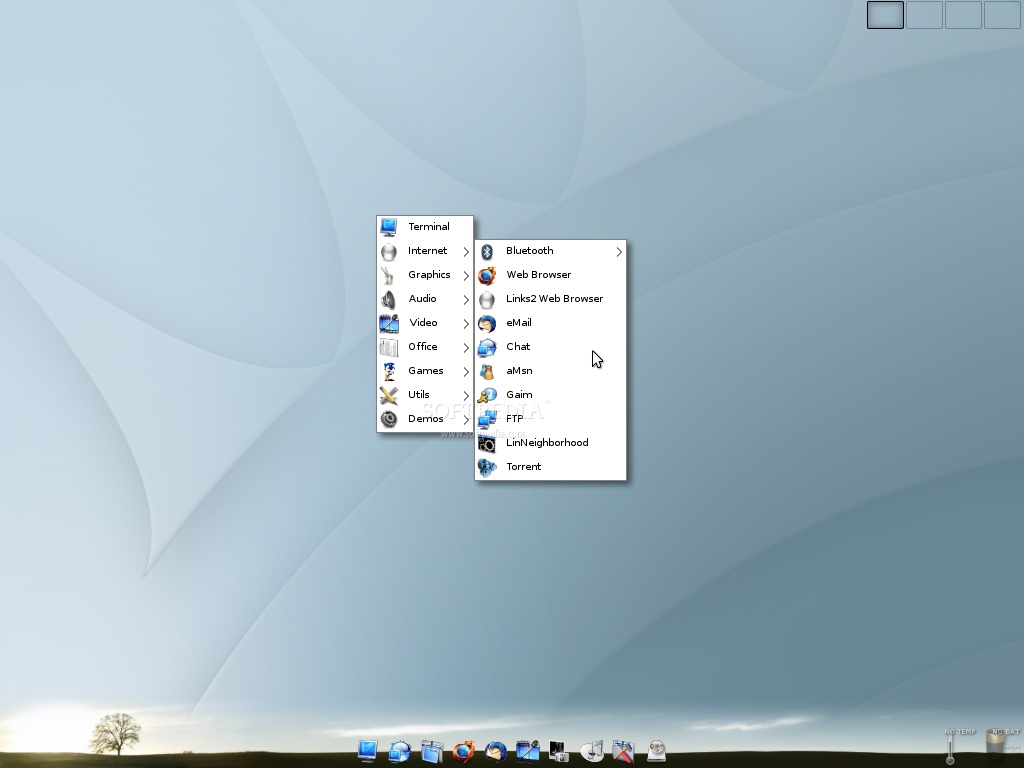 |
| Elive Linux |
Guys, please welcome the latest Fedora 11
After a two-week delay, the Fedora Project team finally announced, two minutes ago, the release of Fedora 11, also known as Leonidas. The multitude of new features and improvements in this new version made the waiting time seem even longer, especially for dedicated fans. Well, at least the buzz from Ubuntu and Mandriva is slowly fading away, so Linux users can concentrate better on Fedora 11.
Coming on a single Live CD, Leonidas can be downloaded either with the GNOME desktop environment or the KDE one. Moreover, spins are available for the Xfce lightweight alternative and other specific purposes such as education or lab work.
Here are the main features in Fedora 11:
· 20-second boot time - from the moment you turn on the computer to the login screen; shutdown times were also reduced;
· Default EXT4 install - the Fedora team took quite a bold step as the installation now defaults to this powerful new filesystem; experimental Btrfs support is also available;
· New artwork - beautifully designed from boot to the desktop: birds, wavy ribbons and dark blues are part of the new theme;
· Plymouth - offers beautiful, next generation graphical boot animation;
· KDE 4.2.2 - the latest and greatest K Desktop Environment with all its eye-candy included
· GNOME 2.26.1 - though there are no major changes, users will notice Brasero as the default CD/DVD burning tool, some minor interface tweaks, improved filesharing, better Microsoft Outlook support in Evolution and more;
· Xfce 4.6 - many new features make the lightweight desktop environment much more efficient and production-ready;
· Automatic Fonts & Mime Installer - enables third-party programs to automatically install required fonts, codecs or clipart;
· Fingerprint reading - devices that provide this feature are supported in Fedora 11 out of the box and configuring them can be easily done through the Authentication Configuration utility;
· ABRT - the Automatic Bug Reporting Tool is a very easy way to report bugs;
· Nouveau - the open source Nvidia driver is now enabled by default;
· Presto - updating the system will be much quicker as this yum plugin brings support for deltarpms, ensuring that only changed components are downloaded, not the whole packages;
· Mozilla Firefox 3.5 Beta - a plethora of enhancements to the most popular open-source browser makes this a great choice;
· Thunderbird 3 Beta - a great email client with improved performance and better IMAP support;
· Xserver 1.6 - bringing improved performance and stability;
· MiniGW - Windows cross-compiling has never been easier;
· TigerVNC - now the default VNC client;
· GCC 4.4, NetBeans 6.5, Python 2.6 and Git 1.6.2 are sure to increase development productivity;
· OpenChange - out-of-the-box Microsoft Exchange access;
· Improved Volume Control, now more user-friendly with per-application control and better handling of multiple speaker sets;
· DeviceKit system service, providing better ways to monitor disks through the Palimpsest utility.
Coming on a single Live CD, Leonidas can be downloaded either with the GNOME desktop environment or the KDE one. Moreover, spins are available for the Xfce lightweight alternative and other specific purposes such as education or lab work.
Here are the main features in Fedora 11:
· 20-second boot time - from the moment you turn on the computer to the login screen; shutdown times were also reduced;
· Default EXT4 install - the Fedora team took quite a bold step as the installation now defaults to this powerful new filesystem; experimental Btrfs support is also available;
· New artwork - beautifully designed from boot to the desktop: birds, wavy ribbons and dark blues are part of the new theme;
· Plymouth - offers beautiful, next generation graphical boot animation;
· KDE 4.2.2 - the latest and greatest K Desktop Environment with all its eye-candy included
· GNOME 2.26.1 - though there are no major changes, users will notice Brasero as the default CD/DVD burning tool, some minor interface tweaks, improved filesharing, better Microsoft Outlook support in Evolution and more;
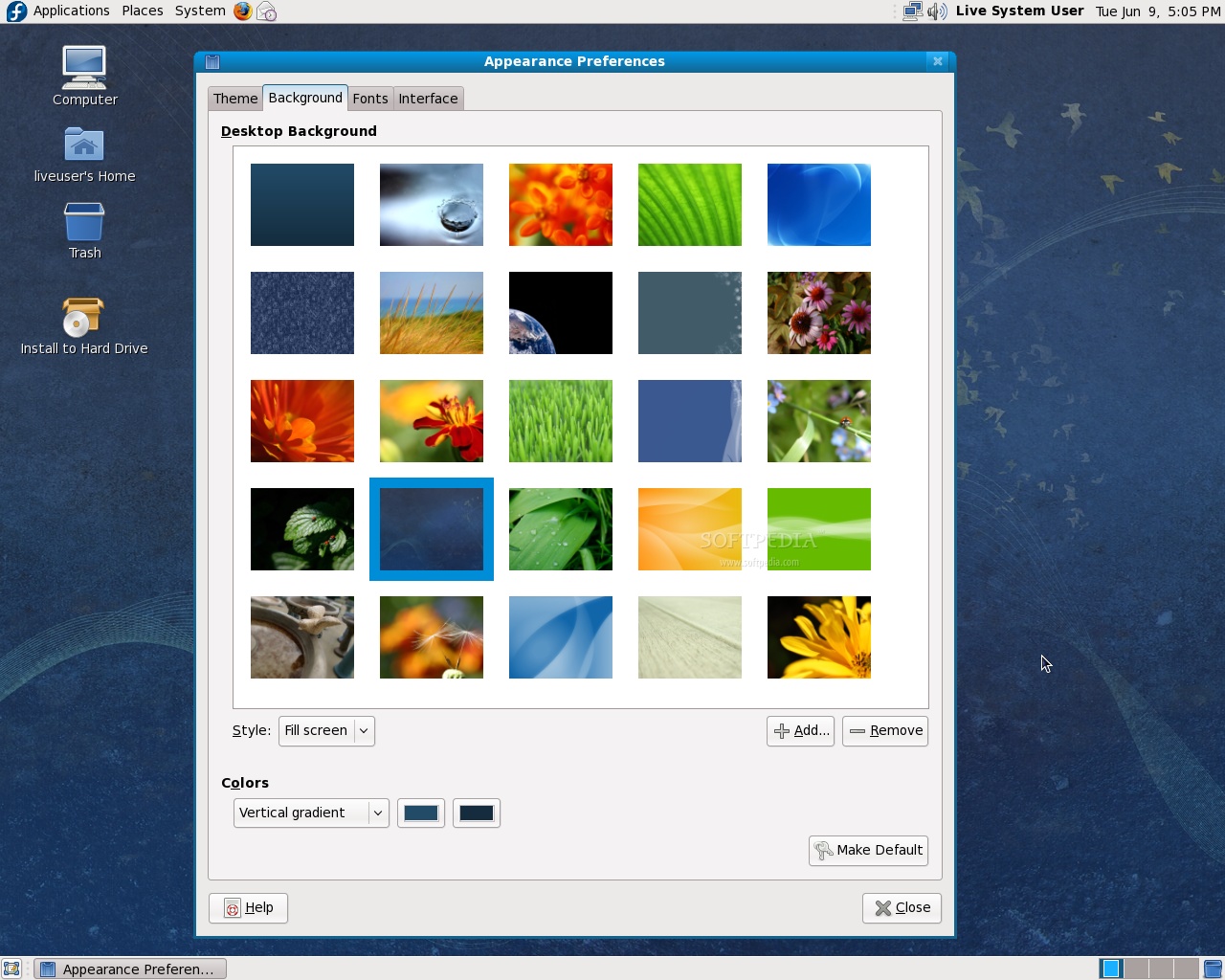 | 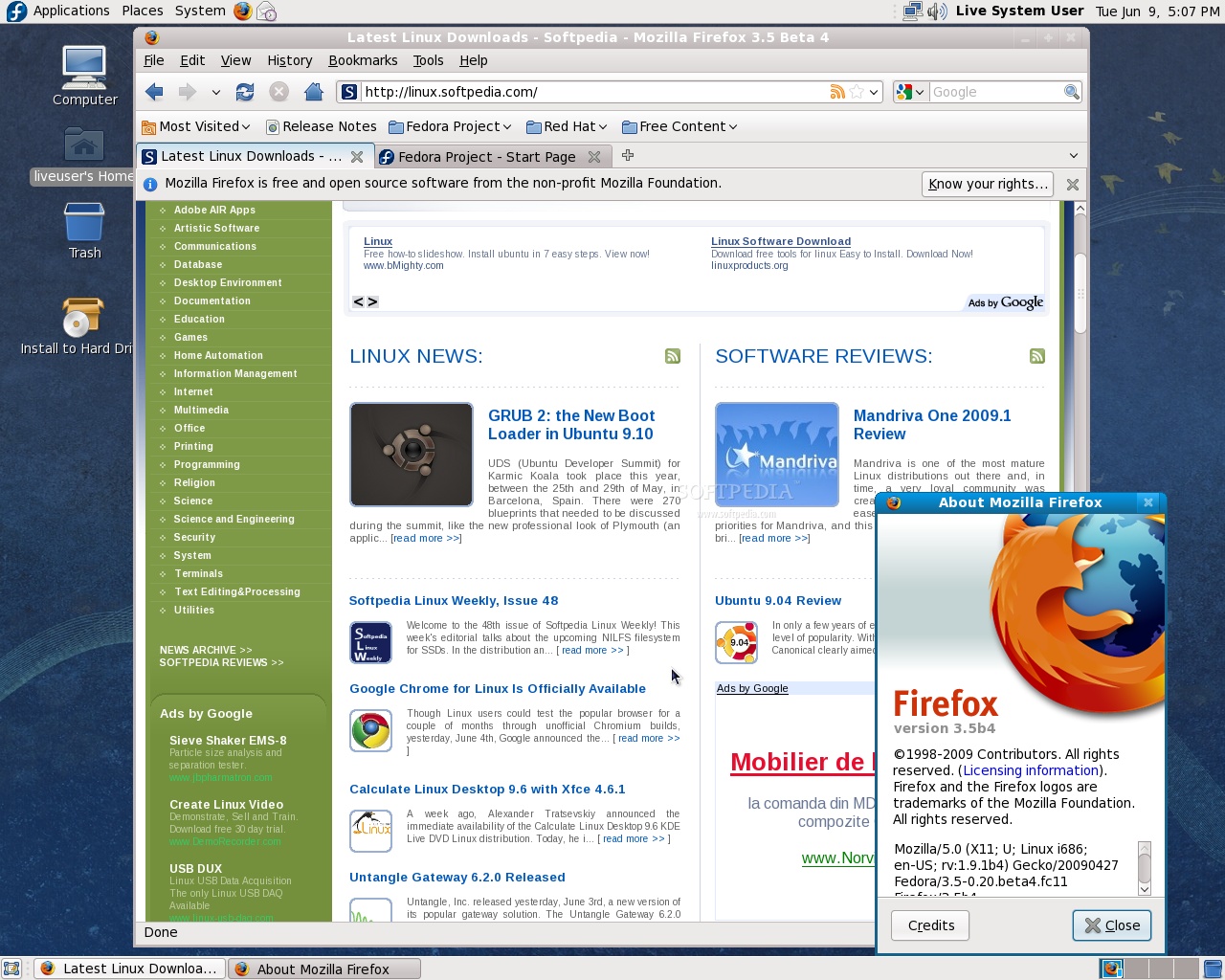 |
· Xfce 4.6 - many new features make the lightweight desktop environment much more efficient and production-ready;
· Automatic Fonts & Mime Installer - enables third-party programs to automatically install required fonts, codecs or clipart;
· Fingerprint reading - devices that provide this feature are supported in Fedora 11 out of the box and configuring them can be easily done through the Authentication Configuration utility;
· ABRT - the Automatic Bug Reporting Tool is a very easy way to report bugs;
· Nouveau - the open source Nvidia driver is now enabled by default;
· Presto - updating the system will be much quicker as this yum plugin brings support for deltarpms, ensuring that only changed components are downloaded, not the whole packages;
· Mozilla Firefox 3.5 Beta - a plethora of enhancements to the most popular open-source browser makes this a great choice;
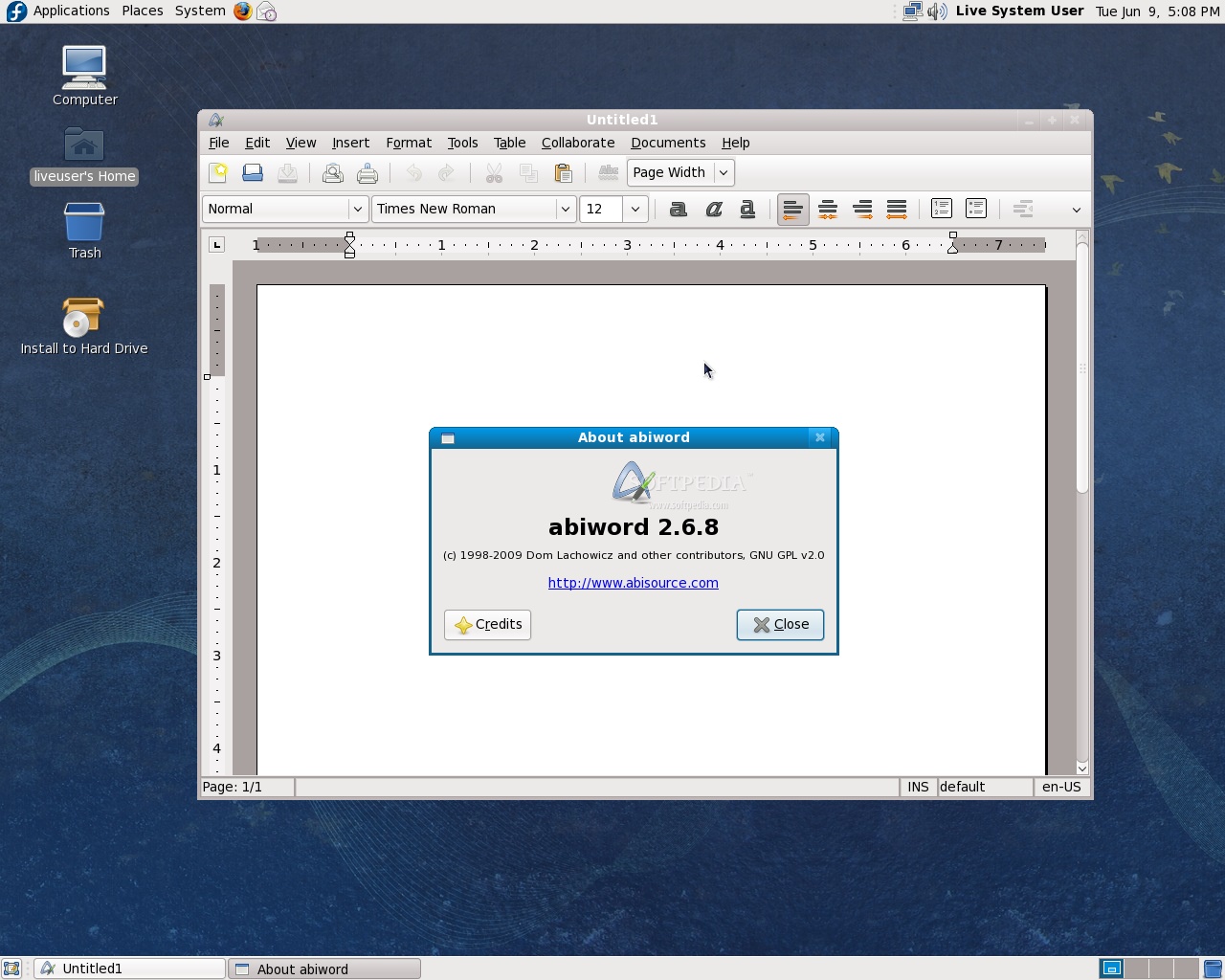 | 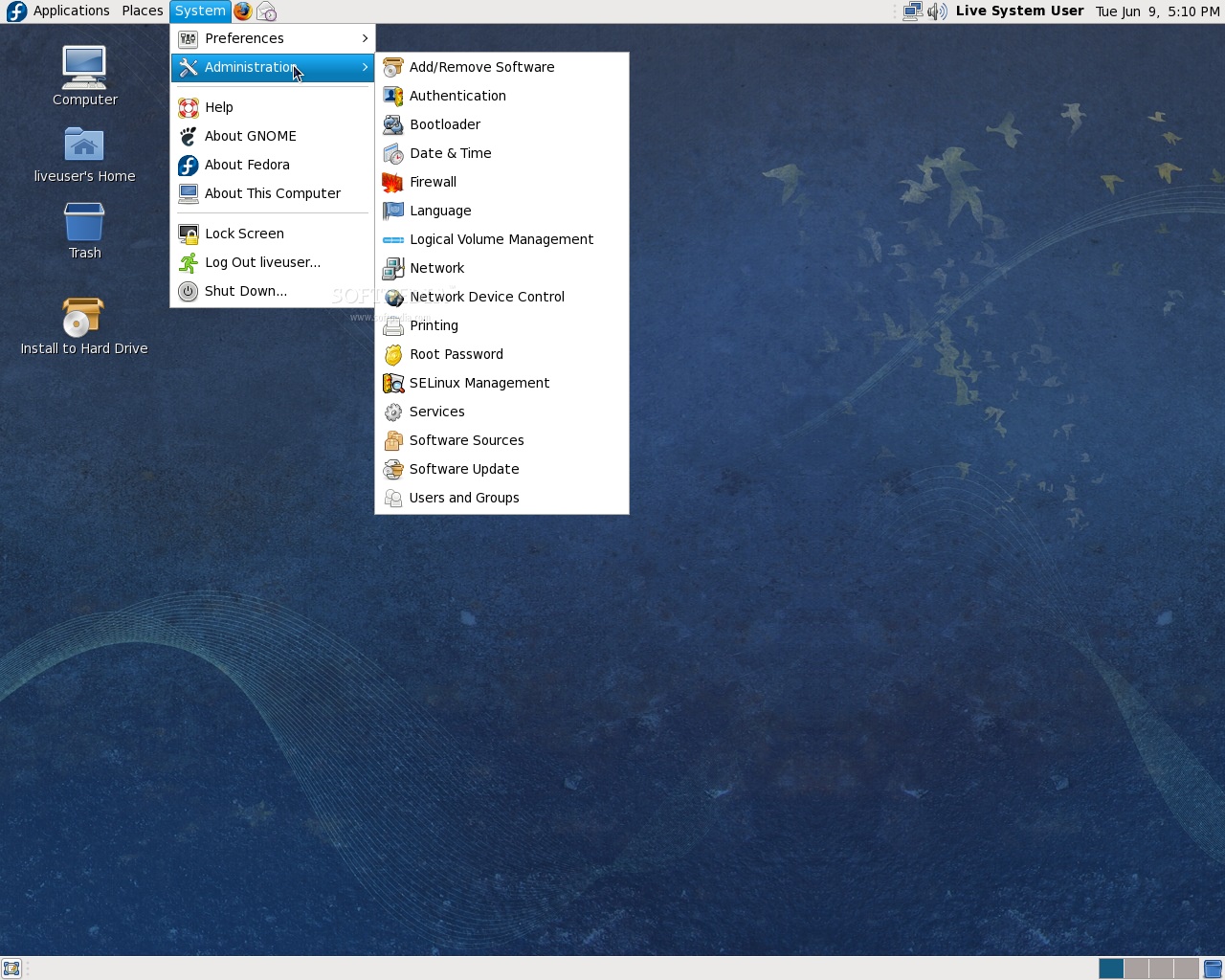 |
· Thunderbird 3 Beta - a great email client with improved performance and better IMAP support;
· Xserver 1.6 - bringing improved performance and stability;
· MiniGW - Windows cross-compiling has never been easier;
· TigerVNC - now the default VNC client;
· GCC 4.4, NetBeans 6.5, Python 2.6 and Git 1.6.2 are sure to increase development productivity;
· OpenChange - out-of-the-box Microsoft Exchange access;
· Improved Volume Control, now more user-friendly with per-application control and better handling of multiple speaker sets;
· DeviceKit system service, providing better ways to monitor disks through the Palimpsest utility.
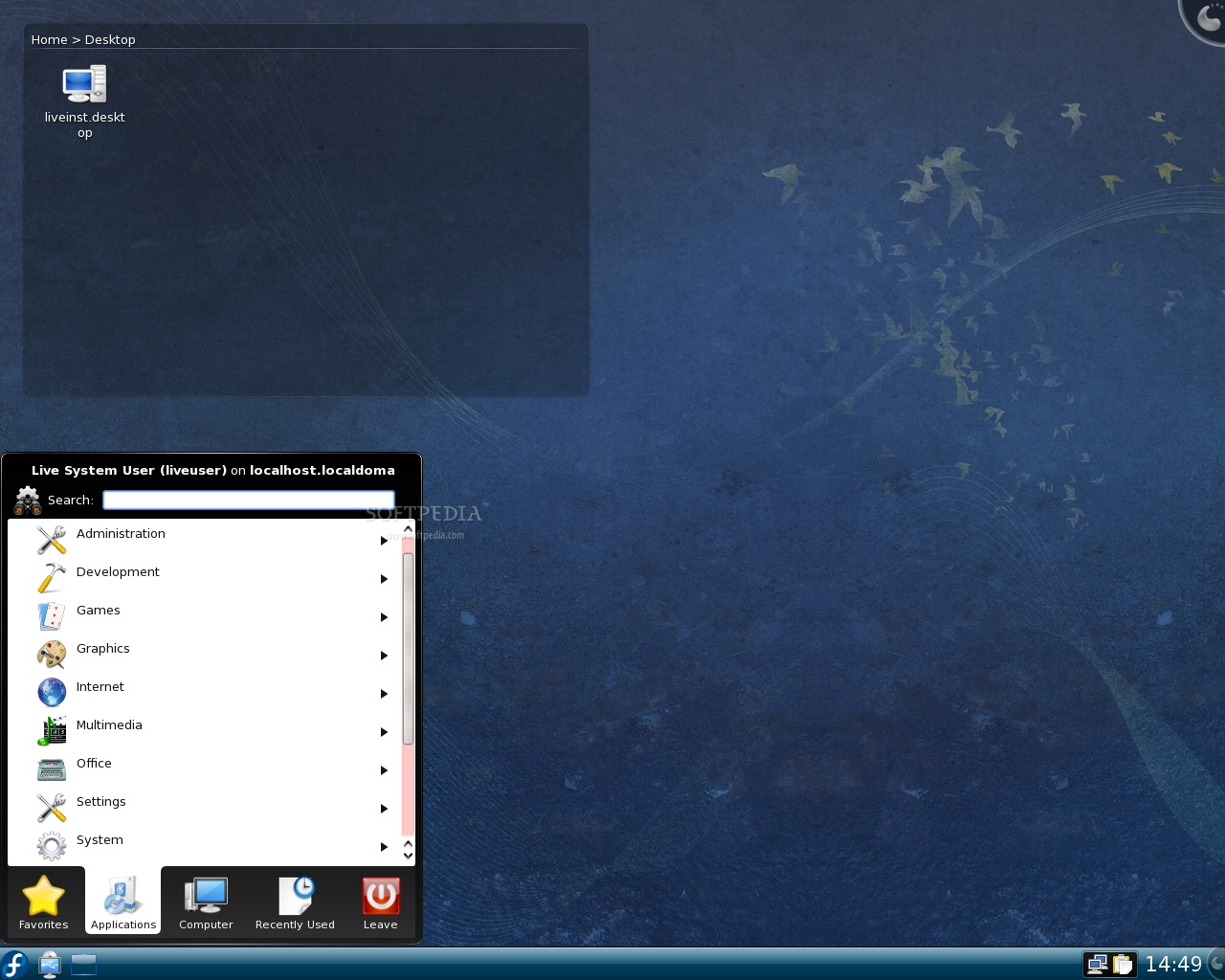 | 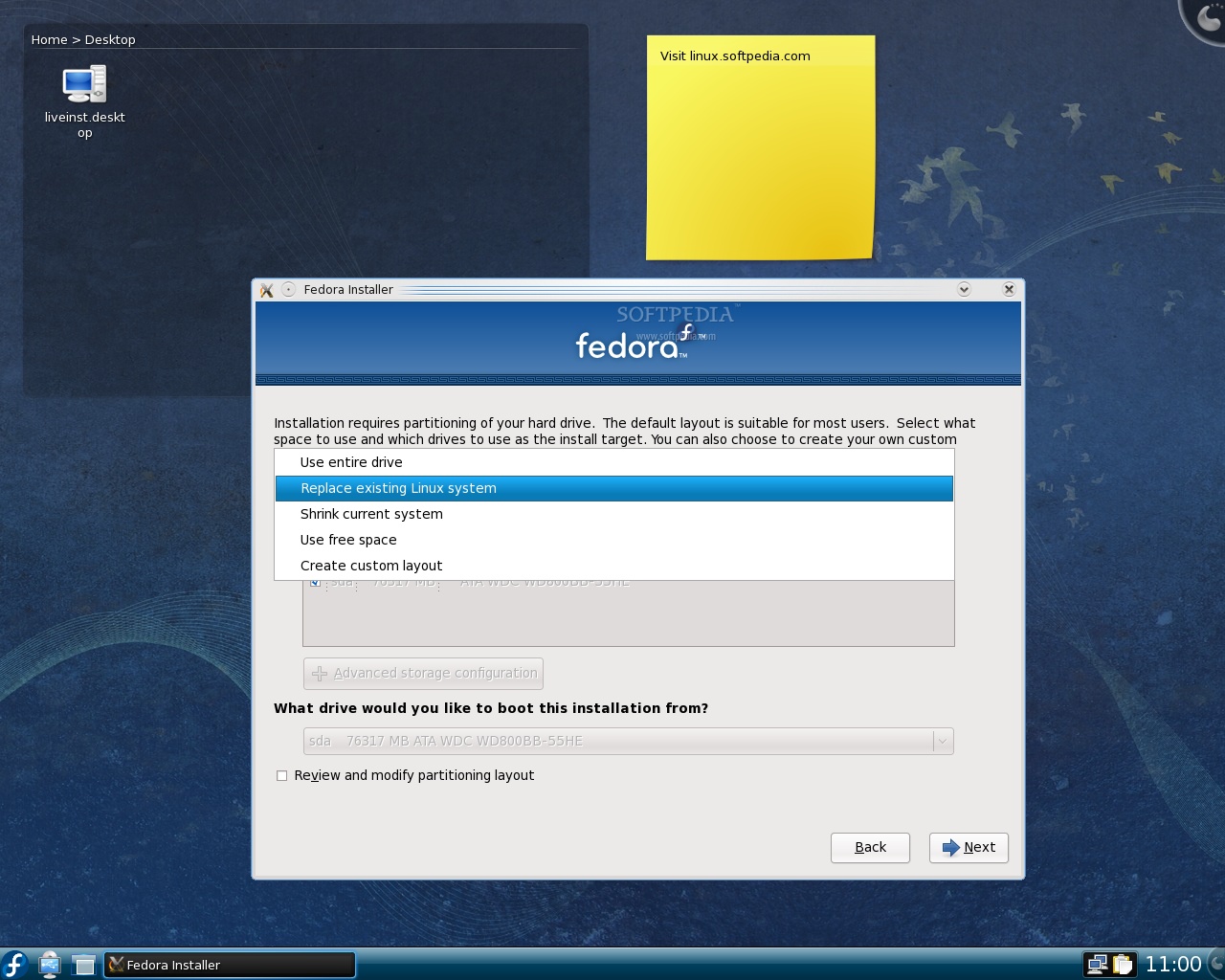 |
Hello World !!
Ya...ya..ya...
I know that you're boring about this but I am still going to post anyway. This is ritual posting. I am not going to replace it.
So, Hello World !! This is me and I am going to post about Linux, BSD, and Unix tips and tricks here.
Stay tuned !!
I know that you're boring about this but I am still going to post anyway. This is ritual posting. I am not going to replace it.
So, Hello World !! This is me and I am going to post about Linux, BSD, and Unix tips and tricks here.
Stay tuned !!
Subscribe to:
Posts (Atom)


