Showing posts with label Fedora. Show all posts

Tuesday, July 5, 2011

How to install VNC on Fedora


Install VNC


Install the VNC server packages using the Fedora package manager

Setup /etc/services


We will need to add the port number that we will be using for the VNC session in /etc/services
If you plan to use different sessions with different screen resolutions then more than one configuration with a different port number assigned can be included here
For example add the following to the /etc/services file
vnc1024 5900/tcp #VNC server 1024x768
vnc1440 5901/tcp #VNC server 1440x900
5900 is the default VNC port number

Setup xinetd to start VNC


VNC sessions can be started using xinetd
If xinetd is not installed you will need to install using the fedora package manager, one way to do this is to type at the command linesystem-install-packages xinetd
Once xinetd is installed you will need to create files in /etc/xinetd.d directory corresponding to your entries in the /etc/services file.
For example as we have vnc1024 specified in /etc/services we will create a file named vnc1024, contents as follows
service vnc1024
{
        disable = no
        socket-type = stream
        protocol = tcp
        group = tty
        wait = no
        user = nobody
        server = /usr/bin/Xvnc
        server_args = -desktop linuxhostname -inetd -query localhost \
          -geometry 1024x768 -once -securitytypes=none -rfbport 5900 :1
}
Replace "linuxhostname" for the hostname of your linux box
Create any other files for any other entries in the services file as required
Restart xinetd as follows
service xinetd restart


Configure GDM to allow remote logins


Using the GUI
Login into the graphical console such as Gnome
Then select System|Administration|Login Screen from the menu.
Select the Remote tab and choose "Same as Local" to enable remote logins.
Select the Security tab and uncheck "Deny TCP connections to X server".
Select close
Using the command line
Edit /etc/gdm/custom.conf an ensure the file contains only the following, the other sections should be blank
[daemon]
RemoteGreeter=/usr/libexec/gdmgreeter

[security]
DisallowTCP=false

[xdmcp]
Enable=true
Restart GDM
GDM will now need to be restarted
Type the following
killall gdm-binary
Or you could reboot if that doesn't work

Give it a go

Try connecting using a VNC viewer from say another PC
Ensure you have opened up the correct ports if you are using a firewall
You should be able to login to the linux graphical desktop

If vnc viewer starts to connect then bombs out, and you are using fedora 7, try disabling the accessible login support
You can do this via the "Login Screen adminstration GUI" or by editing /etc/gdm/custom.conf and adding "AddGtkModules=false" to the [daemon] section. If you modify the file then restart gdm with killall gdm-binary

Wednesday, June 10, 2009

Guys, please welcome the latest Fedora 11

After a two-week delay, the Fedora Project team finally announced, two minutes ago, the release of Fedora 11, also known as Leonidas. The multitude of new features and improvements in this new version made the waiting time seem even longer, especially for dedicated fans. Well, at least the buzz from Ubuntu and Mandriva is slowly fading away, so Linux users can concentrate better on Fedora 11.

Coming on a single Live CD, Leonidas can be downloaded either with the GNOME desktop environment or the KDE one. Moreover, spins are available for the Xfce lightweight alternative and other specific purposes such as education or lab work.

Here are the main features in Fedora 11:

· 20-second boot time - from the moment you turn on the computer to the login screen; shutdown times were also reduced;
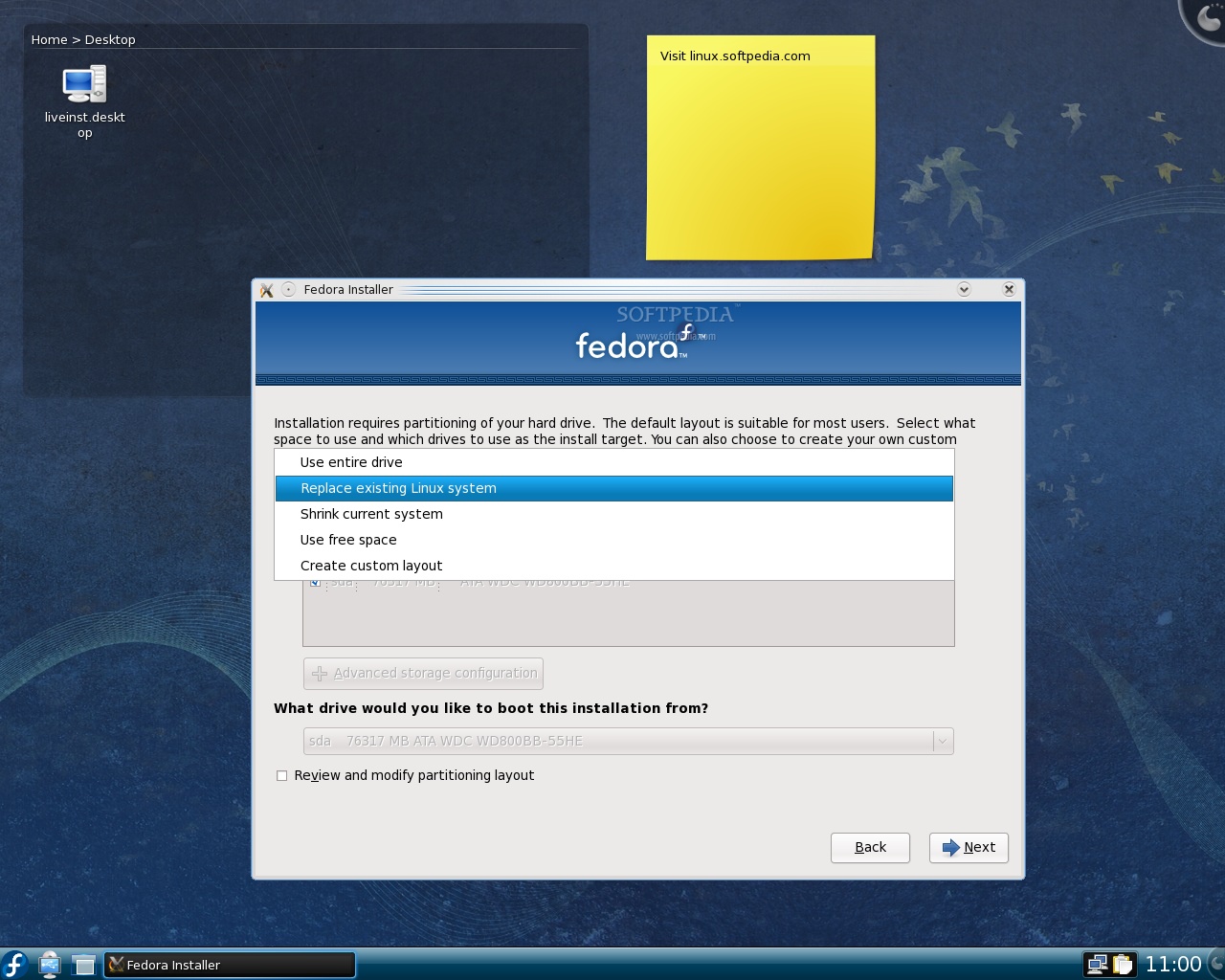
· Default EXT4 install - the Fedora team took quite a bold step as the installation now defaults to this powerful new filesystem; experimental Btrfs support is also available;
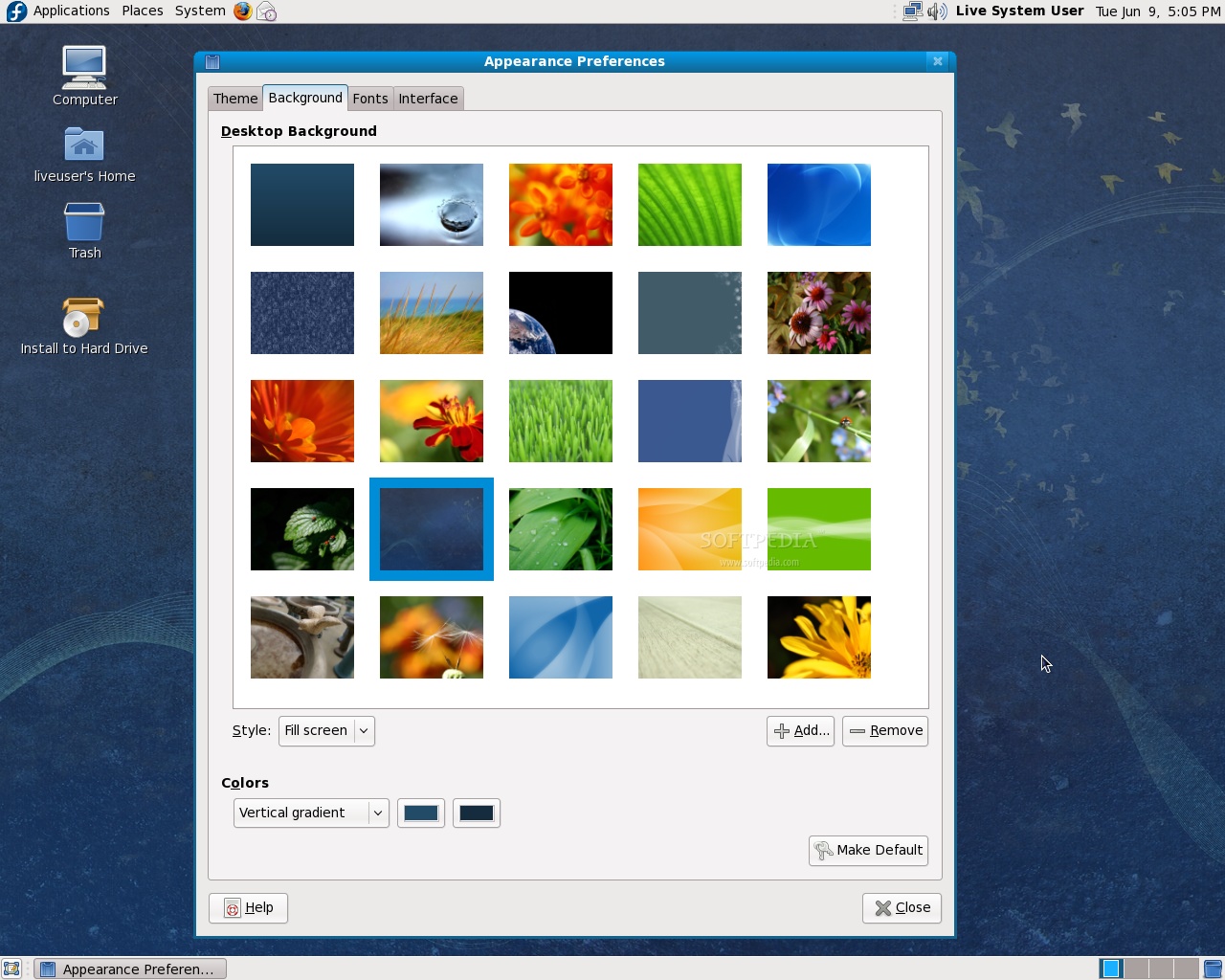
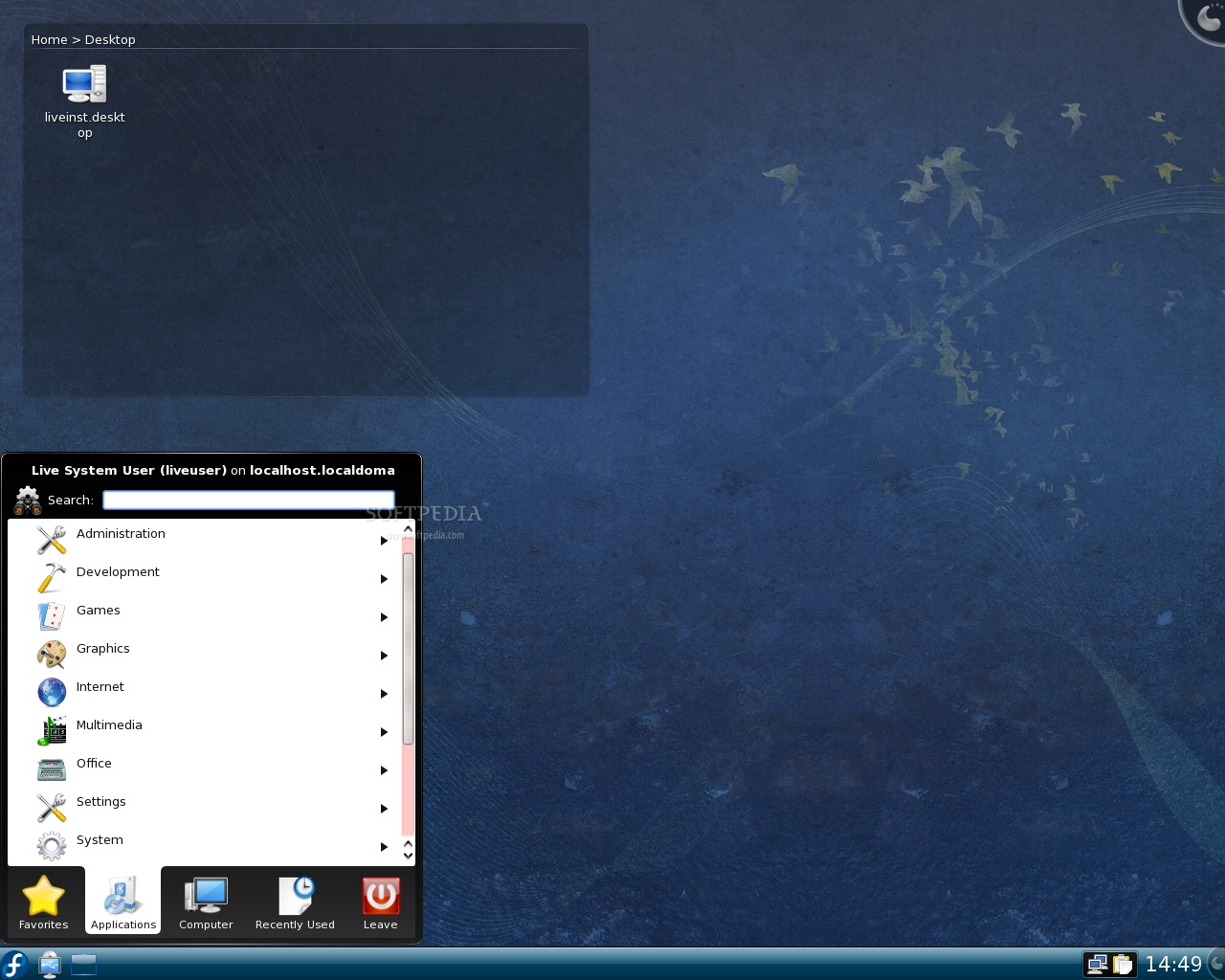
· New artwork - beautifully designed from boot to the desktop: birds, wavy ribbons and dark blues are part of the new theme;
· Plymouth - offers beautiful, next generation graphical boot animation;
· KDE 4.2.2 - the latest and greatest K Desktop Environment with all its eye-candy included
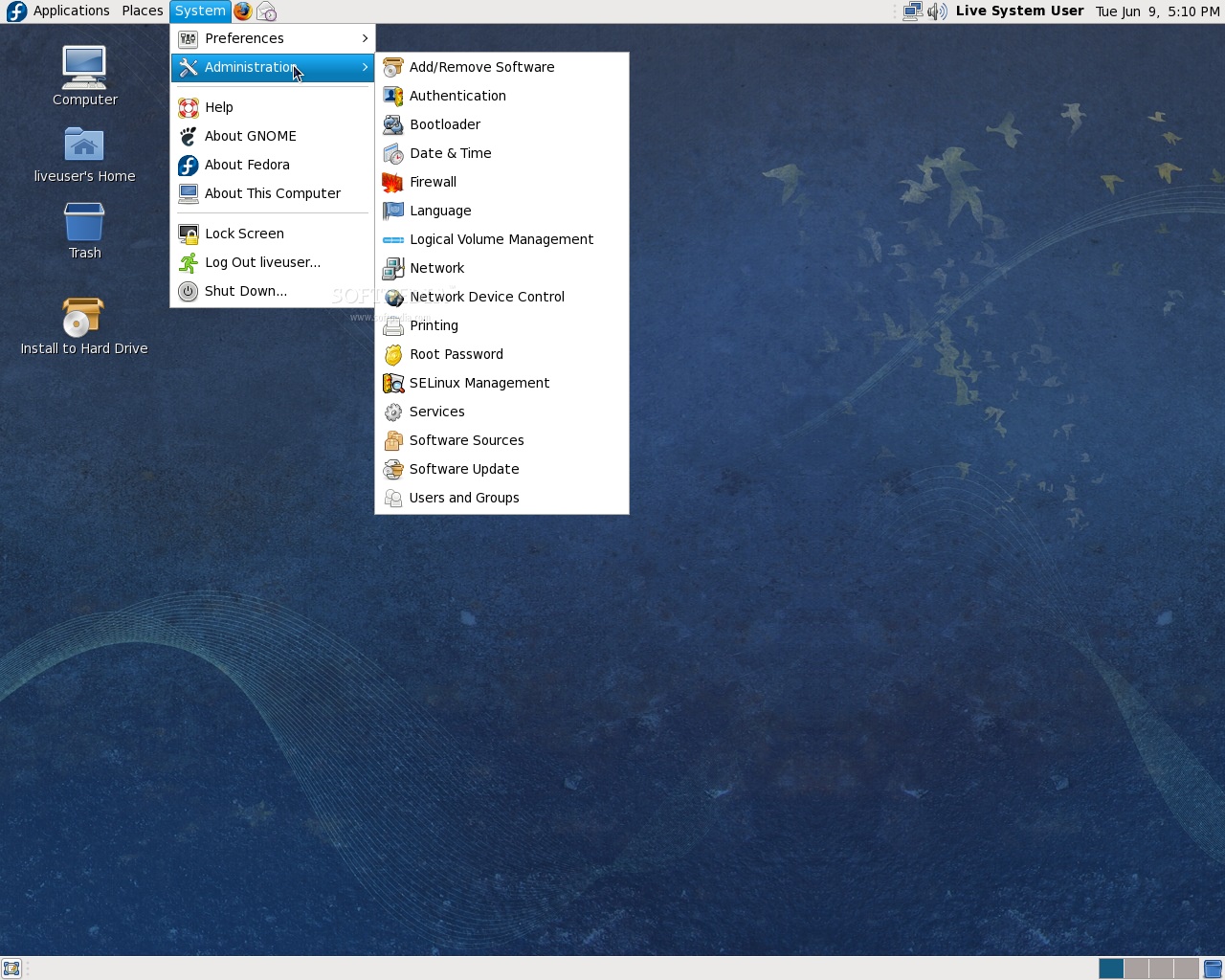
· GNOME 2.26.1 - though there are no major changes, users will notice Brasero as the default CD/DVD burning tool, some minor interface tweaks, improved filesharing, better Microsoft Outlook support in Evolution and more;

Review imageReview image

· Xfce 4.6 - many new features make the lightweight desktop environment much more efficient and production-ready;
· Automatic Fonts & Mime Installer - enables third-party programs to automatically install required fonts, codecs or clipart;
· Fingerprint reading - devices that provide this feature are supported in Fedora 11 out of the box and configuring them can be easily done through the Authentication Configuration utility;
· ABRT - the Automatic Bug Reporting Tool is a very easy way to report bugs;
· Nouveau - the open source Nvidia driver is now enabled by default;
· Presto - updating the system will be much quicker as this yum plugin brings support for deltarpms, ensuring that only changed components are downloaded, not the whole packages;
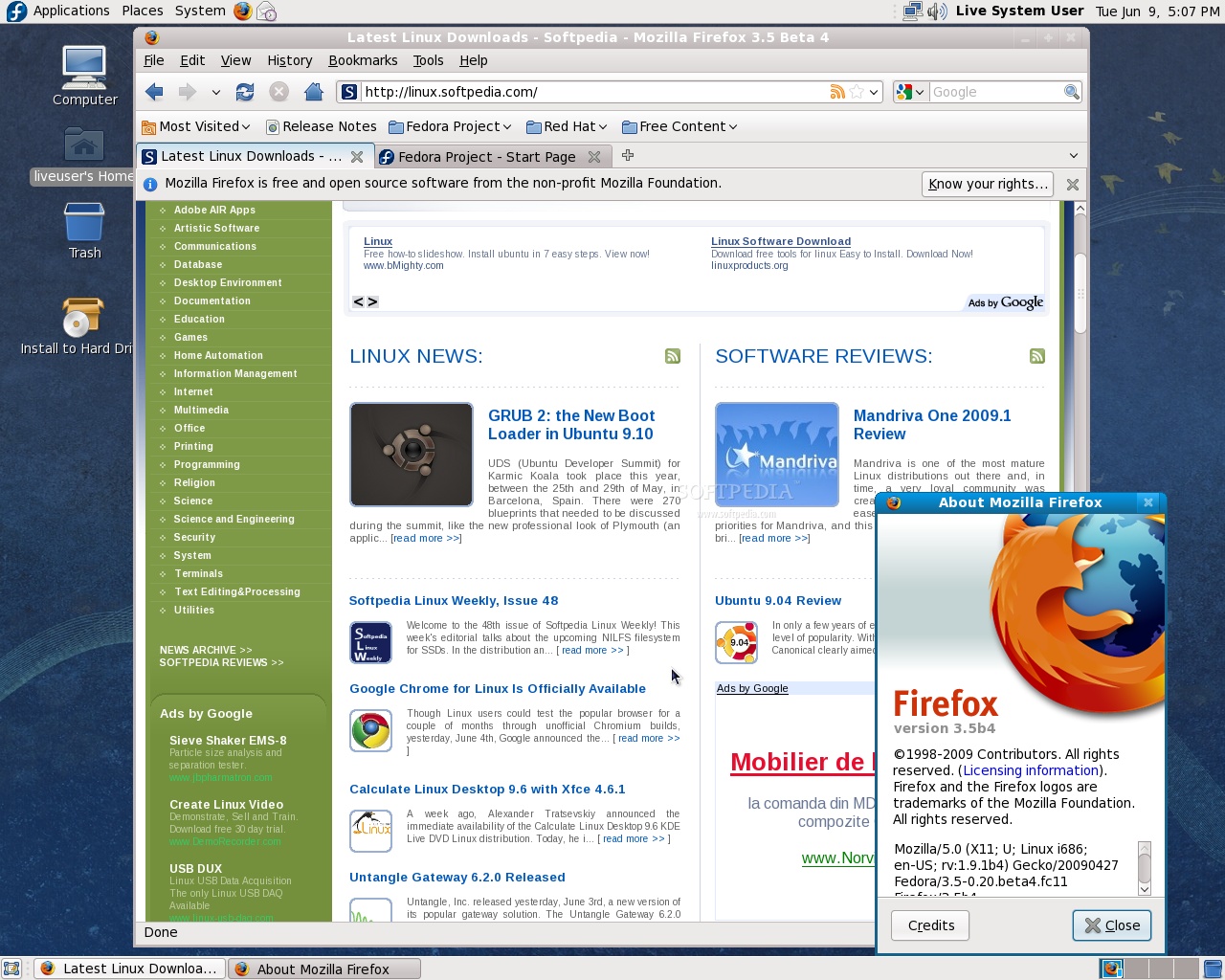
· Mozilla Firefox 3.5 Beta - a plethora of enhancements to the most popular open-source browser makes this a great choice;

Review imageReview image

· Thunderbird 3 Beta - a great email client with improved performance and better IMAP support;
· Xserver 1.6 - bringing improved performance and stability;
· MiniGW - Windows cross-compiling has never been easier;
· TigerVNC - now the default VNC client;
· GCC 4.4, NetBeans 6.5, Python 2.6 and Git 1.6.2 are sure to increase development productivity;
· OpenChange - out-of-the-box Microsoft Exchange access;
· Improved Volume Control, now more user-friendly with per-application control and better handling of multiple speaker sets;
· DeviceKit system service, providing better ways to monitor disks through the Palimpsest utility.

Review imageReview image